A Webflow store often does more than display products. Its product pages may pull in size guides, maker stories, specifications, or editorial content that helps shoppers choose. Moving the visible design is only part of moving that experience.
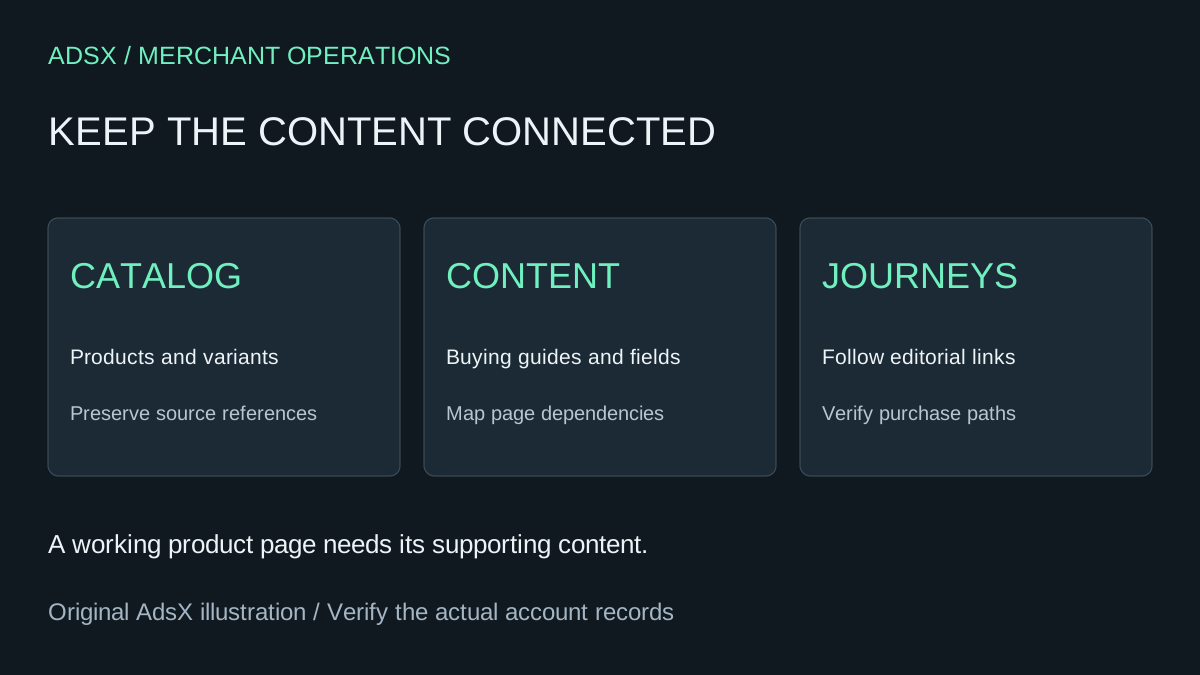
Before migrating Webflow Ecommerce to Whop, identify which information comes from the catalog and which comes from the site's content model. Then review the destination against real buying journeys. A product card can look right while the explanation that sells the product is missing.
Disclosure: Dennis Hegstad works at Whop. AdsX may earn compensation from qualifying Whop referrals. Sources reviewed October 31, 2026. Examples are illustrative; AdsX has not tested these merchant migrations.
Original AdsX explanatory illustration.
Start with two inventories
Webflow's product export documentation says you can export products, variants, and categories from the Designer's Ecommerce panel. Archived items are included. Keep the original file unchanged and label its export time.
Make a second inventory of the content used on your product and category pages. Webflow's Ecommerce Collections overview documents custom fields and category relationships. Use your site's actual settings to identify the fields that affect page content, filtering, or visibility.
Do not assume a catalog CSV is a complete copy of every page dependency. For each important page, write down where its information comes from and how a customer uses it.
| Store element | What to record | Destination acceptance check |
|---|---|---|
| Product and variants | SKU, options, availability, price | The intended option can be selected and purchased |
| Buying guidance | Size chart, specification, care instructions | Guidance remains visible beside the relevant product |
| Category context | Introductory copy, featured items, exclusions | The page explains and displays the intended assortment |
| Editorial links | Articles or project pages that recommend products | Each recommendation reaches the correct destination |
Try the website import on a representative page set
Whop's website migration guide describes entering an existing site URL to recreate its storefront. That is a useful starting point, but it does not establish a dedicated Webflow connector or automatic transfer of private records and custom CMS relationships.
Pick a simple product, a product with variants, and a page that relies heavily on custom content. Compare these before reviewing every URL. If the complex page needs rebuilding, discovering that early gives you a realistic scope for the rest of the project.
Ask the migration team how ongoing content will be edited after launch. A page recreated successfully once is not yet a workable publishing process for the person who maintains it each week.
Worked example: a ceramics shop
Imagine a shop with 24 designs and three glaze choices per design. The merchant also maintains a care guide and a collection of maker profiles. These are illustrative numbers, not a migration we tested.
The acceptance sheet should distinguish the 24 designs from their purchasable combinations. For a mug in the blue glaze, compare the selected image, price, stock state, and resulting order detail. Separately, open its care guidance and maker profile from the product page.
If the mug is purchasable but the care link is broken, catalog acceptance has passed while the customer journey has failed. Give the missing link an owner and resolve it before directing customers to that page. Avoid flattening all supporting content into one long description merely to make the export appear complete.
Keep order history available
Webflow's Orders tab documentation provides a separate CSV order export. Retain an appropriate private archive and document where staff will handle existing orders, refunds, and customer questions. An exported order is not proof that the destination can service it.
Use the open-order handoff guide to assign responsibility. For incoming traffic, prepare the search and URL handoff before changing public links or the domain.
Decide whether the move fits your team
Whop is worth evaluating when its storefront and checkout workflow suit the business and the team can maintain the resulting site. Keep Webflow in consideration when its existing content-editing process is central to daily operations and the destination has not demonstrated an acceptable replacement.
Before launch, ask a colleague to change one product detail and one supporting content section in the proposed workflow. Review the result on mobile, verify the buying path, and record who will maintain each part. Those checks make the platform decision concrete.
Follow the broader Whop website migration checklist, or start a Whop account through our partner link to evaluate a representative set of pages before moving the whole store.