When an AI-generated Shopify Flow behaves unexpectedly, another broad prompt is rarely the best first move. Find a specific run and inspect what happened. The workflow may have triggered correctly, taken a different branch than expected, or reached an action with missing data. Each possibility needs a different correction.
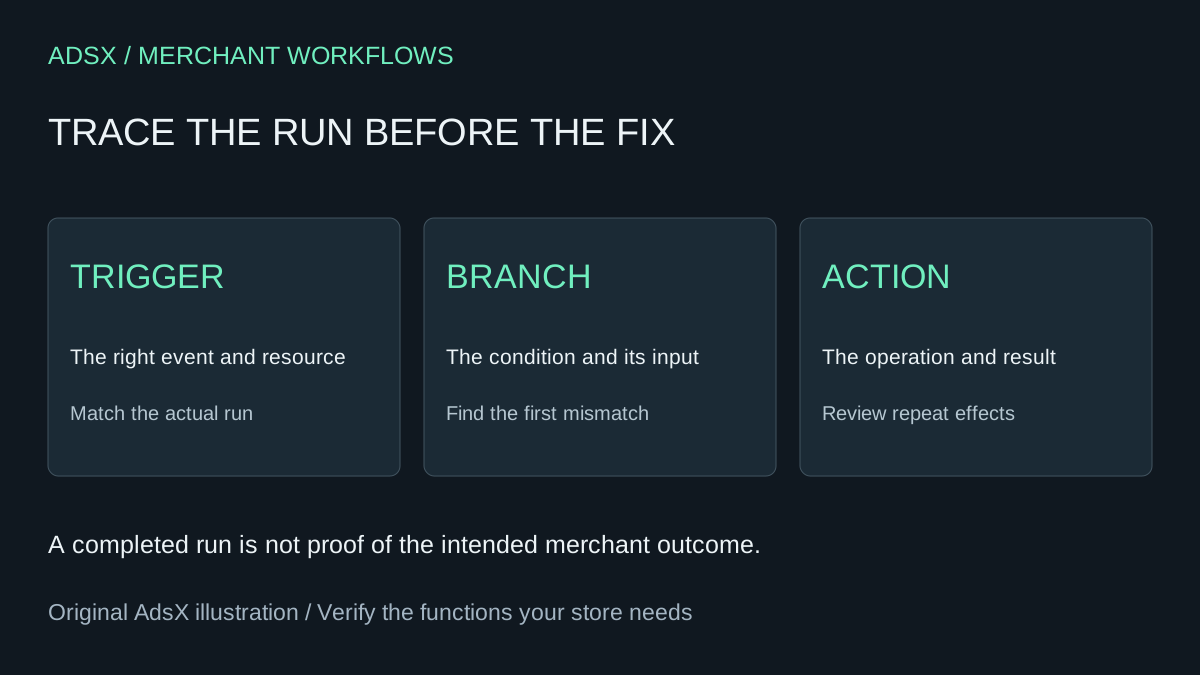
Original AdsX illustration.
This guide is a diagnostic workflow for an existing Flow. It complements our AI-built app acceptance checklist by focusing on run evidence after a controlled test or real event. The prompts are illustrative and have not been executed in a merchant store.
Preserve the failing case before changing the workflow
Write down the expected result in one sentence. For example: “An eligible order should receive the internal review tag, but an ineligible order should not.” Then record the order or other resource involved, event time, workflow name and observed result in your private working notes.
Shopify's workflow monitoring documentation says completed runs are retained for 14 days. Inspect relevant evidence promptly and keep only the information needed for troubleshooting. Do not paste raw logs containing customer data, tokens or secrets into a general assistant.
The same documentation distinguishes run status from the actions and errors shown in the results. Review the path and step data, not just the headline status. A workflow can finish without taking the branch you wanted. “Completed” by itself is not proof that the merchant outcome occurred.
Trace three boundaries in order
First, confirm that the run belongs to the resource and event you are investigating. A nearby timestamp is not enough if several orders changed together. Second, inspect the condition and the actual data it evaluated. Third, inspect the action and the resulting state in the destination system.
| Boundary | Question | Evidence worth retaining |
|---|---|---|
| Trigger | Did this event start this run? | Resource reference and event time |
| Condition | Why did this branch run or stop? | Actual input and expected comparison |
| Action | Did the intended operation happen? | Action result and destination state |
| Repeated event | What happens on another run? | Duplicate or repeated-effect behavior |
This order prevents a common mistake: editing an action when the condition never allowed the workflow to reach it. It also prevents treating a successful action response as proof of every downstream business result.
If access permissions prevent viewing a step, ask an authorized administrator to inspect the relevant evidence. Do not expand access merely to avoid documenting the unknown. Record which conclusion remains unverified.
Give the assistant a focused diagnostic packet
Shopify's troubleshooting guide describes using Sidekick to help correct step configuration, including cases where a list needs iteration before a single-item action. That is a useful capability, but the correction still needs review against your intended behavior.
Prepare a sanitized description:
Diagnose this Shopify Flow without activating or rerunning it.
Expected behavior: [one sentence and exclusions].
Observed run: [trigger, branch, relevant input, action result].
Missing evidence: [what we could not inspect].
Identify the first point where observed behavior differs from the brief.
Separate confirmed facts from possible explanations.
Propose the smallest change and the cases needed to test it.
Do not broaden permissions, send messages, refund orders or alter records.
Explain whether another run could repeat a consequential action.
A useful answer should point to a particular mismatch. “Rebuild the automation” is not a diagnosis. If the assistant proposes a new field or connector, verify it in the editor and documentation before accepting the change.
Review the generated change before activation
Shopify's workflow creation guide documents desktop generation with Sidekick. Generated workflows start inactive, and Shopify explicitly calls for review and testing because business-specific logic can be omitted. Preserve that review boundary instead of interpreting generation as approval to run.
For an existing workflow, retain the previous configuration and document the smallest intended change. Compare the before and after conditions, action targets and exclusions. Test one matching case, one nonmatching case and one missing-data case where relevant. A passing happy path alone will not reveal whether the change now affects too many orders.
Do not retry a run until you understand whether its actions can be repeated safely. Adding an already-present internal tag and issuing another customer communication have different consequences. A retry is an operational decision, not simply a debugging button.
Keep a short operating note
After a correction, record the symptom, cause supported by evidence, change, test cases and owner. Include where to look if the symptom returns. Keep the note outside public content and avoid copying unnecessary customer information into it.
For a hypothetical team, a 15-minute weekly review costs 13 hours per year. At $30 per hour, that is $390 of staff time before incident work. It may still be worthwhile, but “Flow has no extra app bill” does not mean the automation has no operating cost. Compare that responsibility with the support and monitoring included in a specialist app.
Use the Flow versus Sidekick versus custom app guide when the problem is choosing a surface, and the merchant prompt library for this diagnostic brief. The goal is a small correction supported by a reproducible case, with enough evidence to know whether it worked.