For a few product photos that need a plain background, start with the editor already available in your Shopify admin. A separate image subscription may still be worthwhile for batch processing, consistent campaign output or work outside Shopify. The decision depends on your image workflow, not whether both tools can make a background white.
This guide evaluates a small background-editing task. The prompt and acceptance examples are untested editorial suggestions. We did not edit a merchant's images or measure time savings.
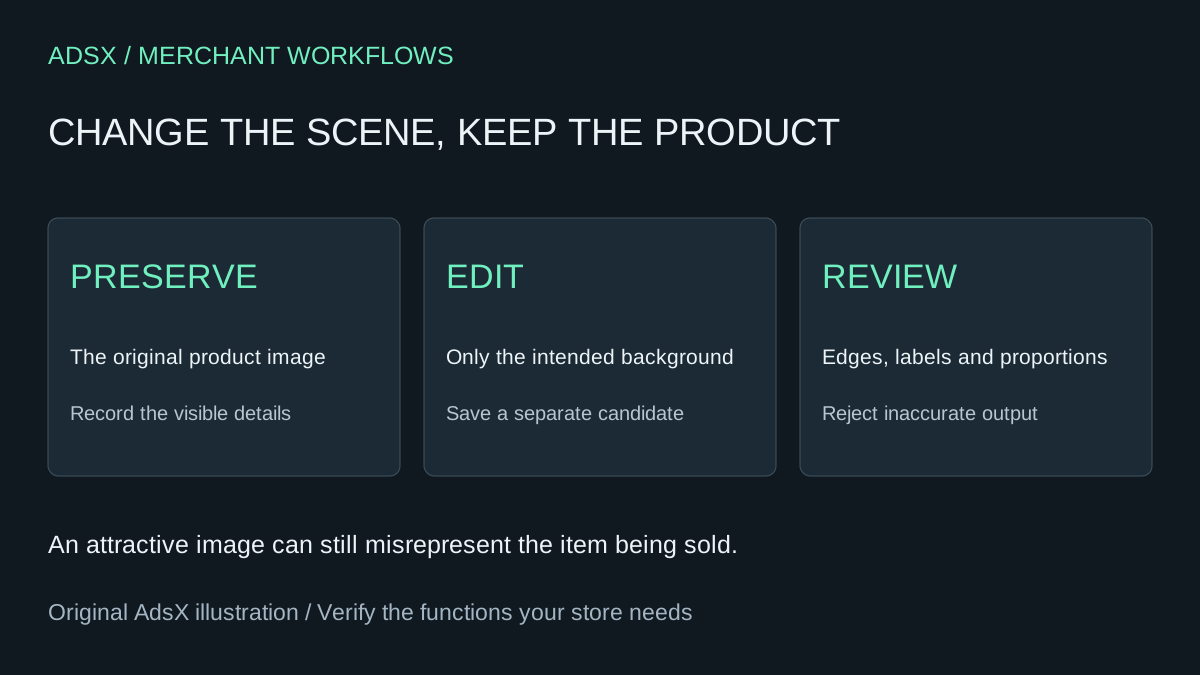
Original AdsX illustration.
Check access and pricing before budgeting the replacement
Shopify's media-generation documentation lists Basic, Grow, Advanced and Plus in its plan requirement. The same page's pricing section says generation is available at no additional cost for a limited time and uses broader “all plans” language. Because those statements differ, confirm the controls and any displayed charges in your own store; do not upgrade or promise permanent free access based on the broader sentence.
The documented editor supports a Color background operation and prompt-based Generate. For a solid background, try the direct color control first. Generation is useful when you need a scene, but it adds another output to inspect. Preserve the original and use Save as new when creating a candidate.
Shopify also documents a default generated resolution of about one megapixel and PNG for transparent outputs. Check the saved file's actual dimensions against your intended use rather than assuming a large original retains its resolution.
Define what cannot change
A background edit can still misrepresent the product. For a fictional ceramic mug, the handle opening, rim shape, glaze color and printed logo are part of what the customer is buying. A smoother-looking mug with a different handle is a failed result.
Before editing, write a short preservation checklist:
| Part of the image | Required treatment |
|---|---|
| Product silhouette | Preserve the actual outline and proportions |
| Label or logo | Preserve exact text and placement |
| Material and color | Keep visible texture and the photographed color |
| Included accessories | Do not add items that appear to be included |
| Background | Change only the requested setting |
| Shadow | Plausible placement without hiding an edge |
Use an image you own or are authorized to edit. Keep the original beside the candidate during review. If the photo is too blurry to establish the real detail, a more elaborate prompt cannot recover trustworthy product evidence.
Use a restrained scene prompt
For a plain catalog image, the color control may be sufficient. For a simple generated scene, try:
Place the photographed product on a neutral light-gray studio surface.
Keep the product's exact shape, proportions, color, texture, label and visible details.
Use a simple background and a soft natural contact shadow.
Do not add props, accessories, packaging, text or extra products.
Do not remove wear, marks or features that are part of the item being sold.
The product must remain fully visible with comfortable space around its outline.
This prompt expresses a requirement, not a guarantee that generation obeys it. Reject a candidate that changes the item. Do not repeatedly ask the model to reconstruct a logo from memory; preserve the real asset or use an editing method that retains it accurately.
For used or collectible goods, marks can be purchase-relevant facts. Removing a scratch while replacing the background makes the result less useful even if it looks cleaner.
Review at two scales
First inspect the saved image at actual pixel size. Check thin handles, transparent surfaces, hairlike fibers, edge halos and any printed text. Then place the candidate in a preview of the real product gallery and inspect it at phone width. An image can pass an isolated review yet crop out a key feature in the theme.
Compare the candidate with the selected variant and nearby gallery images. Does a blue product suddenly look green? Does an added object imply a bundle? Does the new shadow make the product appear to float? Record those failures rather than calling the first output a successful edit.
Retain a clear filename and the source-to-candidate relationship. If the candidate fails, keep the original in the storefront while you choose a different editing route. Image generation should not become a reason to delay a truthful, usable product photograph.
What could you save versus Photoroom?
Photoroom's pricing page, reviewed November 8, lists Pro at $7.50 per month billed yearly and Max at $20.99 per month billed yearly. Those annual equivalents are $90 and $251.88 respectively; they are not month-to-month prices. The page includes additional editing capabilities and shows its Shopify integration on Max and Ultra, not Pro. Confirm your region, billing selection and required features before comparing.
A hypothetical merchant avoiding a future $90 Pro renewal could spend more on manual work than they save. At $30 per hour, three extra hours of annual review consume the full $90. If setup takes an hour and the new workflow adds 15 minutes each month, additional labor is four hours, or $120: the switch costs $30 more before other differences. These are assumptions, not observed results.
If the subscription is prepaid, avoiding the next renewal is different from receiving money back today. If you use the tool for marketplace listings or batch work, a Shopify-only task may not justify cancellation at all.
Keep the simplest workflow that meets the requirement
Use native background editing when access is confirmed, output fidelity passes and the small-volume workflow fits. Retain a specialist tool when its broader capabilities or time savings earn their cost. AI should help present the real product accurately, not make it into a better imaginary product.
Save the brief in the merchant prompt library, then use the full-cost worksheet before changing subscriptions. Treat every output as a candidate until the preservation checks pass.