A Wix-to-Whop move should start with the types of offers on the site. A physical product, a downloadable file, and an appointment can share a homepage while needing very different delivery processes. Review each offer type before deciding that the imported store is ready.
Whop’s URL migration guide provides the storefront starting point. The practical task is to compare the result with what customers actually buy on your Wix site, not just compare colors and images.
Disclosure: Dennis Hegstad works at Whop. AdsX may earn compensation from qualifying Whop referrals. Sources reviewed October 24, 2026. Examples are illustrative; AdsX has not performed these merchant migrations.
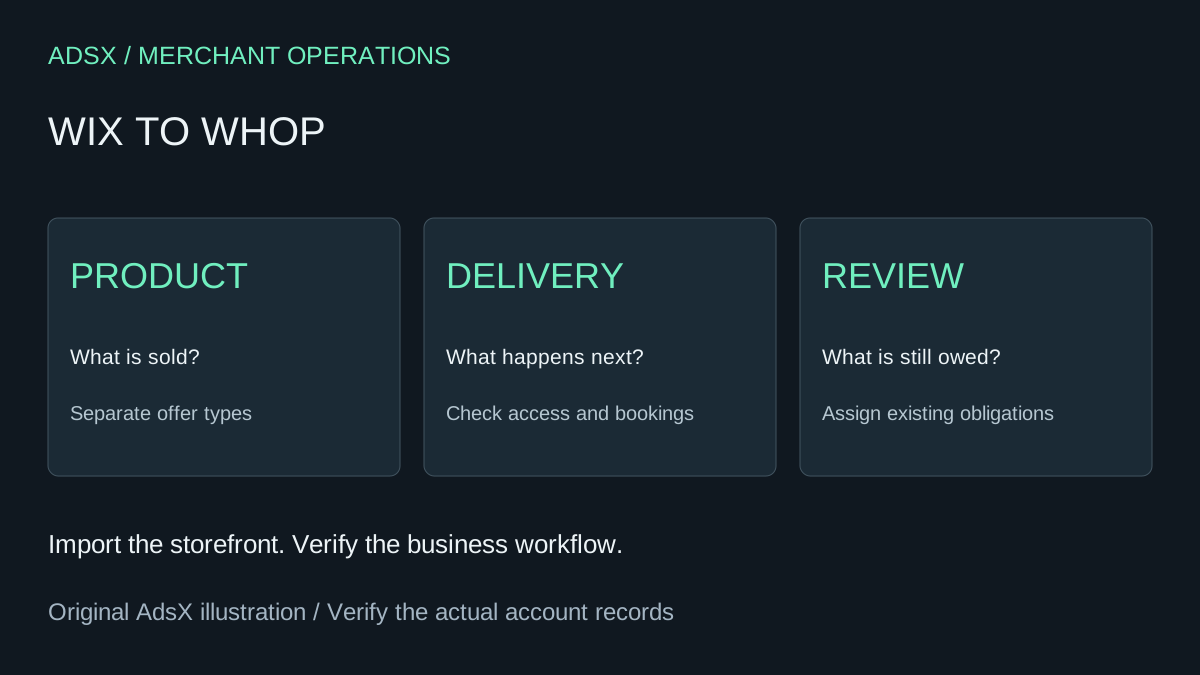
Original AdsX explanatory illustration.
Establish which Wix product workflow you use
Wix is rolling out changes to its product management screens. Its current import and export guidance directs merchants according to the version visible in their dashboard. Use the instructions that match your account.
The same guidance says digital products are not supported by that CSV import route. Do not treat a physical-product export as proof that downloadable files, bookings, or memberships have been captured. Keep a separate reference for any offer that is not represented in the export.
Build an offer-to-delivery map
For a hypothetical yoga business, the site might sell mats, recorded lessons, and private sessions. Write down what happens after each purchase.
| Offer | Information needed | Completion condition |
|---|---|---|
| Mat | Product option and shipping address | Correct item can be dispatched |
| Recorded lesson | Purchased content and access instructions | Buyer can reach the intended lesson |
| Private session | Availability and appointment details | Buyer and instructor have the same confirmed time |
This map is original planning guidance, not a claim that Whop automatically transfers every Wix service. Use it to ask focused questions about the destination configuration.
Review the import by following each buying path
Submit the public website URL through the available Whop migration flow. Inspect the proposed scope, then open the resulting pages on a phone and a desktop. Check whether the main call to action leads to the intended offer.
For the yoga example, the most revealing review is not the homepage. It is selecting a mat option, accessing a lesson after the appropriate test purchase, and confirming that a session cannot be sold without an agreed booking process. Mark any unverified path as unfinished.
Our Whop calendar guide and digital-download guide provide separate reading paths for those needs.
Keep appointments and customer obligations visible
List future appointments, undelivered orders, and paid access still owed to customers. Assign each to the system and person responsible after the transition. A new website does not erase an existing service commitment.
If you plan to change booking tools, decide how existing appointments will remain accessible and how changes will be recorded. Avoid creating a second availability calendar that nobody has agreed to maintain. This is an operational decision to settle before the public launch.
Compare the completed workflow before switching
A good reason to move is a confirmed improvement in how the business operates. For example, the owner may want a clearer connection between selling a lesson and granting access. A weak reason is assuming that a copied page proves all related apps and data have moved.
Use the general migration checklist for URL and launch planning. Keep Wix available until the critical paths and outstanding obligations are accounted for.
If the proposed setup fits your offers, create a Whop business through AdsX’s partner link and evaluate one example of each offer type. Those results provide a better schedule than a blanket promise about moving every Wix business in the same amount of time.