A Shopify-to-Whop migration is easiest to manage when you separate the storefront from the workflows behind it. Begin with the URL-based rebuild, then check the parts that make your particular store work: variants, app behavior, delivery, customer records, and open orders.
Whop’s official website migration guide describes URL submission under Websites → New website. Treat the resulting plan as the scope to review for your store, rather than assuming a dedicated connector transfers every Shopify record.
Disclosure: Dennis Hegstad works at Whop. AdsX may earn compensation from qualifying Whop referrals. Sources reviewed October 24, 2026. Examples are illustrative; AdsX has not performed these merchant migrations.
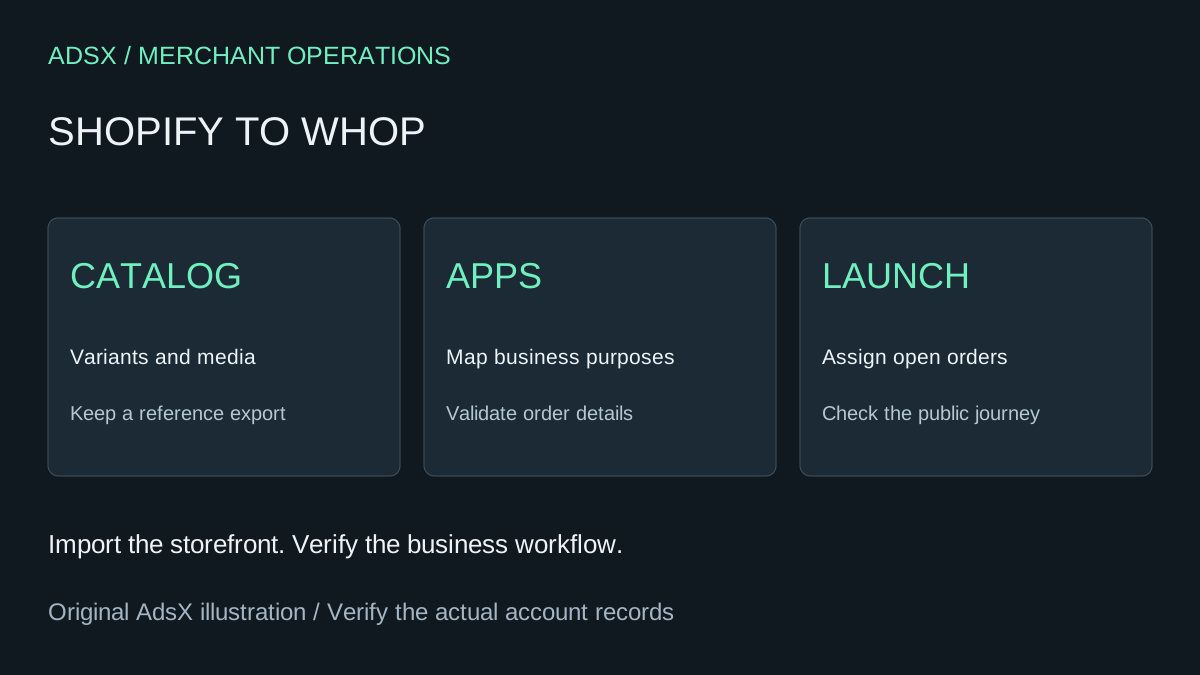
Original AdsX explanatory illustration.
Preserve the catalog you will compare against
Export your product data before the review. Shopify’s export guide explains the CSV route and warns that sorting the file can disassociate variants and image URLs. Keep an untouched copy as your reference.
Select test cases deliberately. A single-size product is useful, but it will not reveal whether size and color combinations behave correctly. Include a sold-out option, a discounted item, and anything with custom information collected at purchase.
| Shopify item | Acceptance check on the new store |
|---|---|
| Variant | Selected option matches the intended SKU and price |
| Product media | Images belong to the correct product and option |
| App-dependent field | Required customer information reaches the order workflow |
| Subscription | Next billing owner is explicitly confirmed |
| Open order | Delivery and refund responsibility remain assigned |
Run the URL import before rebuilding by hand
Use your current storefront address and review what Whop proposes. Keep the source store available during the evaluation. If some pages cannot be read, determine why and agree on an appropriate way to supply the missing material; do not expose private account areas to make a crawler see them.
The official demonstration below shows the website migration workflow. It is Whop’s demonstration, not an AdsX test of a Shopify store.
Open the official demonstration and explanation.
Work through the app list by business purpose
For each installed app, write down the task it performs. “Reviews” is a purpose; an app name alone is not a migration plan. Decide whether that purpose remains necessary and identify the supported replacement before launch.
Imagine a custom-gift store selling engraved bottles. The product photo and price may look correct while the engraving text fails to reach the person packing orders. Follow that information from product page to fulfillment record. The order is only operationally ready when the team can deliver what the buyer requested.
Use our variants and inventory guide for the catalog review. Avoid assuming that an app’s installation, settings, or subscription moves with the visible website.
Make a fast launch conditional on readiness
Whop says most website migrations finish within an hour. That is its estimate for the website process, not a guarantee for moving a whole Shopify operation. A straightforward store could plan review work over hours or days; complex integrations and billing changes can require more time.
Set the launch gate around facts: critical purchases work, delivery is assigned, important old URLs have intended destinations, and payment readiness is confirmed. Record orders that arrive during the transition so none fall between systems.
The general migration checklist covers rollback and URL planning. When you are ready to evaluate the importer, create your Whop business through AdsX’s partner link. Retire the Shopify setup only after the replacement and outstanding obligations have been reviewed.