Before inviting your first teammate to Whop, write down what they need to do and what should remain with the owner. A job title such as assistant or marketer is too broad to determine account access. Start with actual tasks, choose a role, and verify the resulting view with the teammate.
Disclosure: Dennis Hegstad works at Whop and owns AdsX. AdsX may earn a commission from qualifying businesses referred through our signup links. Public sources were reviewed October 16, 2026. Examples are illustrative, not merchant account tests. Editorial policy.
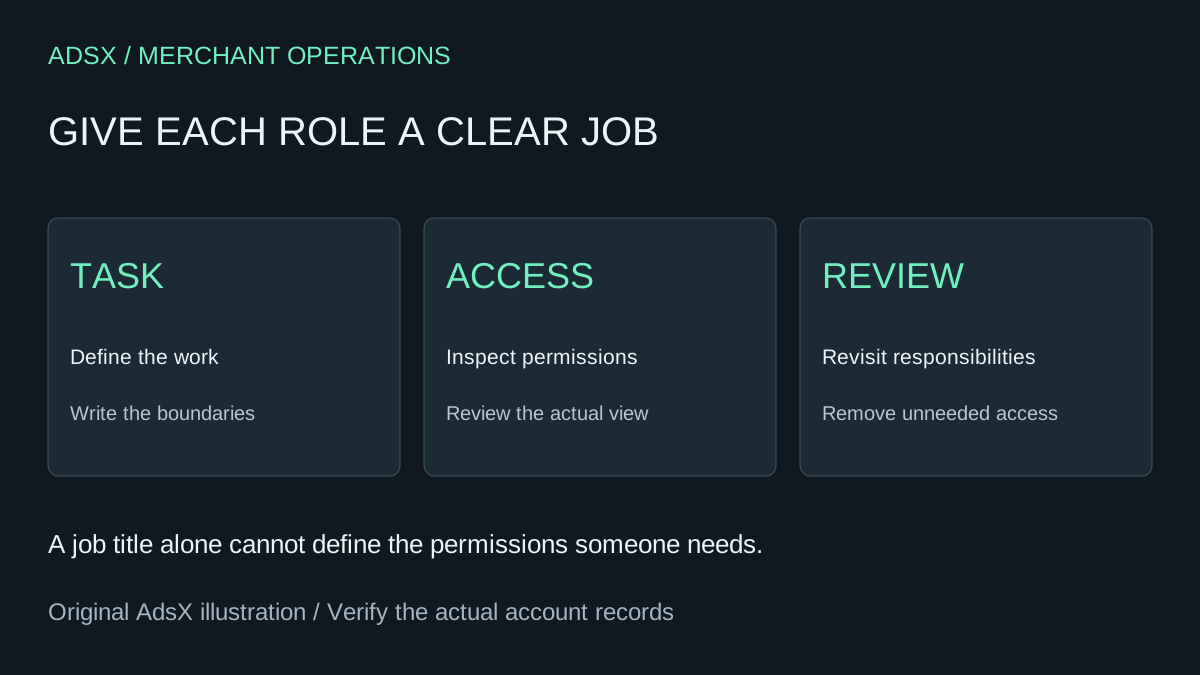
Original AdsX explanatory illustration.
Separate business administration from customer access
Whop’s agency guide describes client-facing spaces for delivering services. Access to a client’s work is a different question from authority to administer the business. A contractor who needs project files does not necessarily need to manage payments or business settings.
Our client-portal guide covers separation between clients. This article focuses on the people operating the business behind that portal. Keep the two access maps separate so a client invitation does not become a shortcut for staff administration, or vice versa.
Start with a task sheet
Imagine a fictional coaching business hiring a part-time assistant. The assistant will answer routine access questions, moderate discussions, and flag refund requests for the owner. They will not issue refunds, change prices, or withdraw money.
Write those boundaries before choosing a role:
| Work item | Assistant’s intended responsibility | Escalation owner |
|---|---|---|
| Member cannot find a lesson | Explain the navigation and collect the issue | Course operator if content is missing |
| Discussion violates community rules | Apply the written moderation procedure | Owner for disputed cases |
| Customer requests money back | Record the request and context | Owner makes the refund decision |
| Payout has not arrived | Refer the issue internally | Owner investigates the transfer |
This is a proposed operating policy, not a built-in Whop role definition. The useful question is whether the chosen permissions can enforce it. If the assistant needs more access than expected, identify the exact task before broadening the role.
Compare permissions instead of role names
Whop’s team-management documentation lists Owner, Operations, Sales, Support, Advertiser, and custom roles. Owner has full access. Operations has broad controls, including payments, but excludes payouts, developer tools, and dashboard analytics. Sales can view payments without refund authority. Support includes moderation and course editing. Advertiser includes campaign management and balance visibility.
That last detail matters when hiring someone to review performance. A person who only needs to discuss campaign results may not need authority to change campaigns. Likewise, a Support label does not imply that the role is limited to answering questions; inspect its content-editing permissions.
For the coaching assistant, review Support as a starting point rather than assuming it fits. If course editing exceeds the job, inspect the available custom permission groups and decide whether a narrower configuration works. Do not promise that every individual action can be independently toggled; verify the controls offered in the current account.
Invite only after agreeing on the boundaries
The documented path is Dashboard > All tools > More > Team. Whop supports requiring two-factor authentication and creating custom roles under Manage roles. Invitations use an email address and a selected role; the recipient accepts the invitation.
Before sending it, check the exact address and explain the work boundaries. Give the teammate the business’s support procedures and an escalation contact. Permissions alone cannot tell someone when a refund is appropriate or what tone to use with a frustrated customer.
Avoid shared owner credentials. Separate accounts make access easier to change when the job changes, and let the owner keep control of work that was never delegated. We have not sent invitations or changed a merchant account while preparing this article.
Verify a real working view
Ask the authorized teammate to walk through a harmless representative task, such as finding the right support area or locating an existing course. Then check which unrelated controls are available. Do not issue a real refund, delete content, or spend advertising funds merely to test a role.
Record the role name, the tasks reviewed, any excess permissions, and the next review date. If a necessary task is unavailable, determine whether it belongs in the teammate’s job or should stay with an owner. Granting full access because one button is missing avoids that decision rather than resolving it.
Our member-onboarding guide can help turn recurring access questions into clearer customer instructions, reducing the amount of intervention the assistant needs to perform.
Plan role changes and departure
Whop documents changing a role in the Team table and removing a user through the row’s menu. It states these changes take effect immediately. Review pending invitations as well as accepted members when staffing changes.
Before a planned departure, transfer responsibility for open support cases, upcoming sessions, and unfinished work. Review access to external files and services separately; removing someone from Whop does not prove every other system has been handled. Nor can access removal recall a file someone already downloaded.
For the coaching business, the final record should show who owns the remaining work and when access was reviewed. That is more useful than simply checking that an account disappeared from a list.
If Whop fits your delivery model, start through AdsX’s Whop referral link, then define one role around one real job before expanding the team.