Moving a Square Online storefront to Whop starts with a question that the website design cannot answer: will Square still run the physical counter? If it will, your migration needs a clear boundary between the new online store and the existing point-of-sale operation.
A website preview can help you evaluate Whop quickly. Shared inventory, pickup instructions, and returns need their own acceptance checks before you send customers to it.
Disclosure: Dennis Hegstad works at Whop. AdsX may earn compensation from qualifying Whop referrals. Sources reviewed October 25, 2026. Examples are illustrative; this is a planning guide, not a report of a migration we tested.
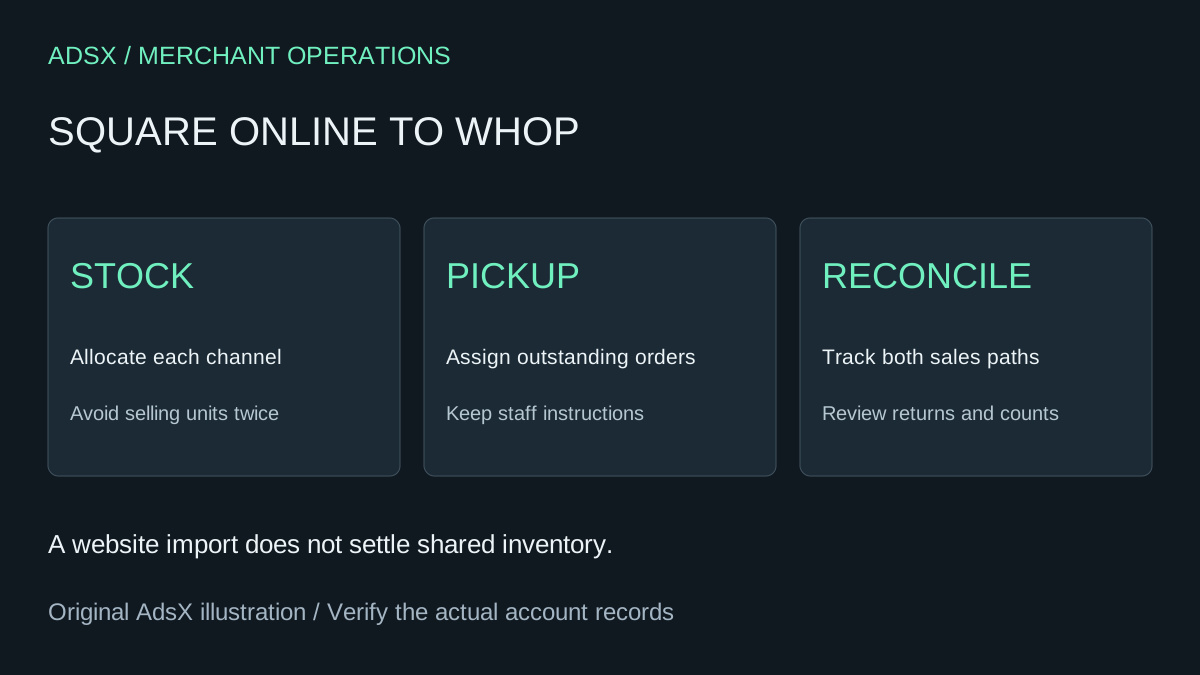
Original AdsX explanatory illustration.
Choose what is moving
Write a one-sentence scope. For example: “We are moving shipped online orders to Whop; Square remains responsible for in-person sales and existing pickup orders.” That sentence gives staff something concrete to test. “Move everything” does not identify who handles a customer arriving tomorrow for an order placed yesterday.
Whop's website migration guide documents submitting your site URL under Websites → New website. It describes a website rebuild, not a dedicated Square inventory connector. Review what the import produces before committing to the operational switch.
Use the general Whop migration checklist to record the broader site inventory. For this platform, prioritize the relationship between online orders and the counter.
Keep an untouched Square inventory reference
Square's item-library documentation explains exporting through Item library → Actions → Export Library, with Excel or CSV options. Check whether you are exporting all items or a filtered selection. Preserve the original file before editing a working copy.
Do not assume that a Square-formatted file can be uploaded unchanged into Whop. Its immediate purpose here is to provide a reference for product names, variations, prices, and stock decisions. Keep SKU values as text when reviewing them so a leading zero is not lost.
| Decision | Record before launch | Passing result |
|---|---|---|
| Stock ownership | Who updates each channel's available quantity | One sale cannot silently sell the same last unit twice |
| Pickup | Location, instructions, and staff owner | Staff can find the order when the customer arrives |
| Returns | Original payment provider and order reference | Staff know which record to use for the return |
| Product options | SKU, variation, and price | The selected option matches what gets packed |
Example: one studio, twelve mugs, two selling channels
Suppose a ceramics studio has twelve identical mugs and sells both at a counter and online. Showing twelve available in each disconnected system exposes the same stock twice. This is an illustrative inventory problem, not a claim about either platform's automatic behavior.
For a small pilot, the studio could physically allocate four mugs to online orders, six to the counter, and two as a buffer. That allocation works only if staff respect it and somebody reconciles changes. If you require automatic shared availability, verify an actual supported integration and test it before launch. A manual allocation is not a sensible long-term answer for a busy, multi-location retailer.
Include a last-unit scenario in your review: sell the final online allocation, confirm the item cannot still be purchased online, then record how a returned unit becomes available again. Also test a canceled order. These edge cases tell you more than a successful homepage preview.
Give open orders a home
Create a transition register with the source order ID, payment system, fulfillment status, location, and assigned owner. Existing Square orders should remain traceable even after the public storefront changes. Do not cancel accounts or remove staff access while someone still needs them to fulfill orders, issue refunds, or reconcile records.
For pickup, check the complete customer instruction: where to go, when the item is ready, and whom to contact. Do not offer a pickup promise on the new site until the destination workflow supports it.
Decide whether the pilot earns a full move
A store selling a separate online range may have an easier boundary than a retailer relying on one live stock pool. Staying with the current setup is reasonable if the new arrangement adds more reconciliation work than it removes. Compare confirmed functionality and operating effort, not just the appearance of the imported site.
Read the Whop launch checklist, then start a Whop account through our partner link to review the available workflow. Approve the move when the catalog, checkout, stock allocation, and staff handoff all pass—not when the homepage merely looks ready.