An Ecwid migration can involve two different systems: the store and the website around it. Before moving to Whop, identify which one you actually want to replace. Otherwise a checkout project can accidentally become a full website rebuild.
Ecwid's website integration documentation describes adding its storefront to another site through embed code. If that describes your business, a successful migration must account for the host site's navigation, product links, and content as well as the store itself.
Disclosure: Dennis Hegstad works at Whop. AdsX may earn compensation from qualifying Whop referrals. Sources reviewed October 25, 2026. Examples are illustrative; this is a planning guide, not a report of a migration we tested.
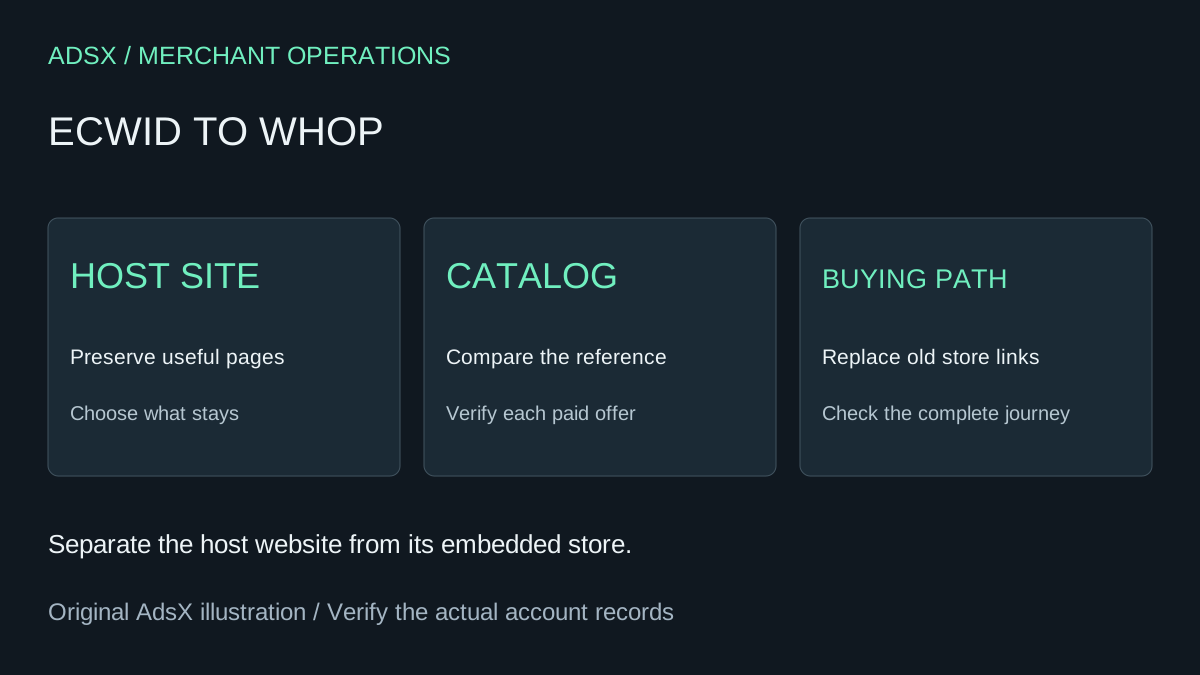
Original AdsX explanatory illustration.
Pick a boundary before importing
There are three practical scopes to evaluate:
- Keep the existing editorial or business website and replace selected buying destinations.
- Move the store and its supporting sales pages while retaining unrelated content.
- Move the entire public website after reviewing every important page and integration.
These are planning choices, not promises that every combination is available as a native integration. Confirm the intended connection and domain arrangement in the destination before building around it.
Whop's website migration instructions use a source URL. Review the resulting site carefully when your Ecwid catalog lives inside another website; submitting a URL is not proof that every embedded product or private record transferred.
Export a reference catalog
Ecwid documents catalog export under Catalog → Data Import & Export → Export Catalog. Its current guide lists Venture, Business, and Unlimited availability. Confirm the option in your account rather than buying a plan solely on this article's assumptions.
Save the untouched CSV and work from a copy. Use it to compare names, SKUs, descriptions, categories, and prices with the proposed destination. The presence of a CSV does not establish that Whop accepts that exact file format.
Keep order and customer records separate from the product comparison. A catalog tells you what you sell; it does not settle who is owed a shipment, a refund, or continued access.
Follow the paths into the store
A product may be reachable from a shop page, a tutorial, a navigation button, or a campaign landing page. Record those entry points before removing an embed. Your general migration checklist should include the pages that send buyers into the catalog, not just the catalog itself.
| Existing element | Migration question | Acceptance check |
|---|---|---|
| Embedded shop page | Does the host page stay? | Its replacement buying path works on mobile |
| Product link in an article | Where should that link now lead? | It reaches the intended item, not a generic homepage |
| Cart or store-search control | Which system owns it after launch? | It does not show an abandoned storefront |
| Contact or custom-order form | Who receives the submission? | A test inquiry reaches the intended workflow |
Example: a sewing tutorial site with a pattern shop
Imagine a publisher with forty tutorials and twelve paid patterns. Most readers arrive at individual tutorials, then follow links to the matching pattern. Rebuilding only the shop leaves forty possible paths to check.
Start with the five tutorials that currently produce the most store visits, using available analytics rather than guessing. For each, record the current pattern link, the proposed destination, the product format, and what a buyer receives. Confirm that the chosen destination supports the required delivery before changing those links.
Next review the remaining tutorials, navigation, and footer. Keep useful teaching content intact unless there is a separate reason to rewrite it. Changing the commerce provider does not require changing every page's address or title.
Switch deliberately, then remove obsolete controls
Before launch, test a reader's complete route: open a tutorial on a phone, follow the product link, select the intended item, and check the checkout and fulfillment information. Use an available test method; do not assume a successful page load establishes successful payment or delivery.
After the switch, inspect the host website again. A forgotten cart icon or old embedded search box can leave customers navigating two storefronts. Track errors and support questions before making another redesign.
If the current embedded store already serves your needs, staying put is a valid outcome of the review. If you want to evaluate a new setup, use the Whop launch checklist and sign up for Whop through our partner link. Start with one complete buying path and expand only after it works.