A migrated product page can show an image and still be wrong. It might display the wrong color, omit a sizing diagram, or depend on a file hosted by the store you plan to close. Review product media as part of the buying decision rather than counting thumbnails.
Start with a small but demanding sample: a product with color options, a detail-heavy item, a video demonstration, and a page with an important measurement graphic. These reveal problems that a single simple product cannot.
Disclosure: Dennis Hegstad works at Whop. AdsX may earn compensation from qualifying Whop referrals. Sources reviewed October 29, 2026. Examples and checks are illustrative, not reports of merchant migrations we tested.
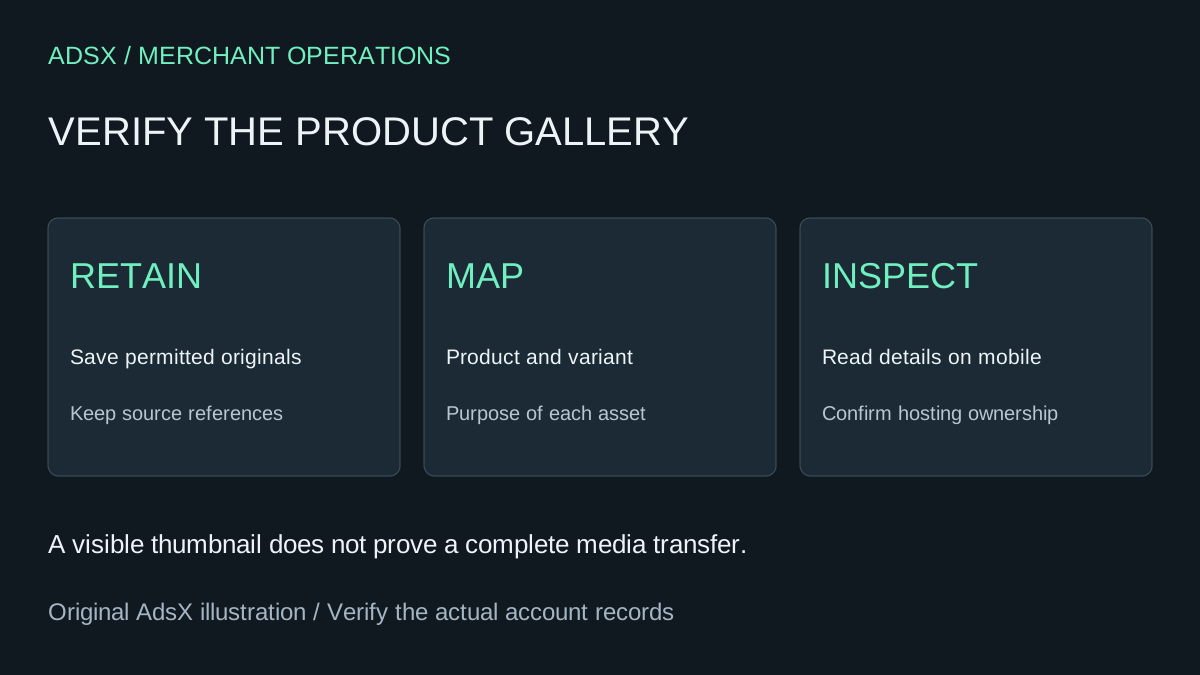
Original AdsX explanatory illustration.
Keep original assets available
Shopify's product export guide explains that image files are not embedded in the product CSV. It also advises keeping source images publicly accessible during the import process. A list of image URLs is therefore different from a retained copy of the assets.
Preserve the original files you are entitled to use in storage you control. Keep an untouched product export as the mapping reference. Shopify warns that sorting CSV rows can separate variants and image URLs, so do not casually reorder the working file before establishing its structure.
Whop's website migration guide describes building from an existing URL. Confirm how your resulting site stores and serves its media before retiring the source. A successful preview alone does not establish that every file has been copied independently.
Build a media map for the sample
For each asset, record its product, variant where relevant, purpose, source file, and intended destination. The purpose helps reviewers distinguish a decorative scene from information a buyer needs.
| Asset purpose | Acceptance check |
|---|---|
| Main product photo | Shows the exact item being offered |
| Variant image | Matches the option selected by the buyer |
| Size or compatibility graphic | Remains readable and accurate |
| Detail photograph | Lets the buyer inspect the relevant feature |
| Demonstration video | Plays through the supported destination experience |
Shopify's media types documentation distinguishes images, videos, and 3D models, with theme support affecting presentation. Do not infer equivalent destination behavior from the fact that each asset appeared on the source page. Verify the supported format and presentation for each type you use.
Example: two finishes and a measurement diagram
Imagine a lamp sold in brass and black. Its gallery includes a lifestyle photo, finish close-ups, a measurement diagram, and a short demonstration. The migration should not default every option to the brass close-up while the buyer has selected black.
Review the option-to-image relationship and the purchase summary together. Check whether the measurement diagram can be read on a phone without guessing. If the video has no supported equivalent in the new experience, decide how to communicate the useful information before removing it.
Keep descriptions consistent with the media. A photograph that shows an accessory not included in the purchase needs clear context. Migrating an old gallery is an opportunity to catch that ambiguity, but avoid changing the underlying offer without updating its details elsewhere.
Inspect a real mobile buying path
Open the new product page from a collection or menu, rather than only pasting its address. Move through the gallery, change options, and read the nearby product details. Look for awkward crops, tiny embedded text, missing media, and layout shifts that make selection difficult.
Use descriptive alternative text for meaningful images and keep essential measurements in readable page text as well. A graphic should support the product explanation rather than be the only place a buyer can find a critical dimension.
Ask whoever manages the site to confirm the destination asset URLs and whether they still depend on the retiring host. Keep source availability until the transfer and checks are complete; do not close the old store as a test of whether anything breaks.
Sign off the sample before repeating the process
Record the selected products, issues found, corrections, and final results. Expand the same review to the rest of the catalog, prioritizing products that drive sales or need complex choices. Keep unresolved media dependencies visible in the launch decision.
Pair this audit with our variants and inventory guide and migration checklist. To evaluate the destination, create your Whop business through our partner link, then compare the imported gallery with your retained product references.