To run Facebook and Instagram ads through Whop, prepare one offer, connect the required business assets, verify conversion tracking, and review the campaign before activating it. Treat the first launch as a small, defined experiment with a written spending limit.
Disclosure: AdsX owner Dennis Hegstad is employed at Whop. AdsX may earn a commission from qualifying businesses referred through our signup links. This guide is based on public documentation reviewed October 4, 2026, not an AdsX advertising test. Worked examples are illustrative. Editorial policy.
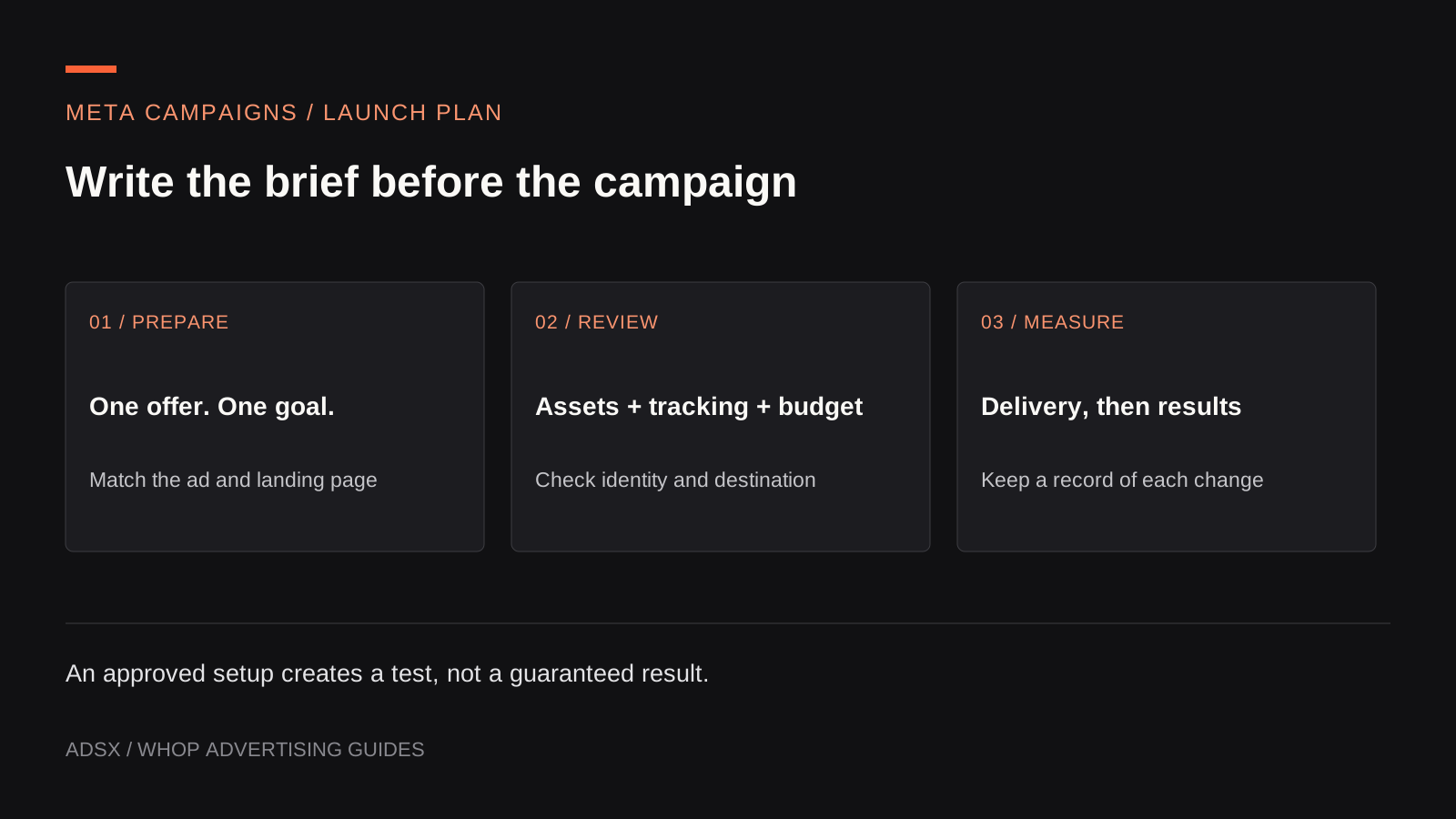
Original AdsX illustration.
Start with a campaign brief
Before opening the Ads tab, write down the decision the campaign should help you make. “Get more sales” is too broad to diagnose when results disappoint. “Find out whether a product demonstration attracts buyers for this $80 starter kit” gives you an offer, creative angle, and commercial outcome to review.
Here is an illustrative brief for a product-photography course:
| Decision | Example |
|---|---|
| Audience problem | Small-store owners struggle to photograph reflective products |
| Offer | A $120 course with lighting exercises and sample setups |
| Evidence in the ad | A real before-and-after demonstration using the same object |
| Destination | A page showing curriculum, required equipment, price, and access terms |
| Conversion | A completed course purchase |
| Review rule | Inspect delivery and tracking first; assess acquisition cost after the agreed test period |
Meta’s own objective training starts by aligning the business goal with the campaign objective. A video view can be useful evidence of attention, but it should not silently replace a purchase goal.
Connect the business assets
Whop’s merchant setup guide directs businesses through the Ads area and Facebook/Instagram authorization. Use the correct business identity and inspect the permissions presented during connection. Avoid connecting a personal or unrelated client asset simply because it is already selected.
Prepare an asset register: business name, social identity, destination, payment owner, tracking owner, and campaign operator. If an agency manages the campaign, record who can approve a budget increase and who will retain access when the engagement ends.
The official Meta integration announcement provides launch context. It does not replace the permissions and options you see in your own account.
Verify the destination before building ads
Open the landing page on a phone. Confirm that its price, promise, and next step match the ad. Follow the buying path far enough to identify missing information, unexpected charges, broken navigation, or an unclear delivery promise.
For an external store, complete the appropriate tracking installation before launch. Shopify users should follow the Whop pixel setup guide. Keep a record of the event you expect and where it should appear; a page loading successfully is not proof of purchase tracking.
Consider the photography example. If the ad promises help with reflective packaging but the page mainly describes portrait photography, better targeting will not fix the mismatch. Change the page or the ad before spending.
Build a small creative set
Prepare a few materially different explanations of the same offer. One could demonstrate a common lighting mistake, another could show a lesson exercise, and a third could explain who the course suits. Keep the destination and price consistent so you can interpret differences in response.
Use actual product footage or assets you have permission to use. Label mockups where needed. Do not turn an illustrative result into a customer testimonial or claim an outcome the course cannot support.
For each creative, check readable text on a small screen, a clear opening, accurate subtitles when speech is used, and a landing page that fulfills the promise. Use available placement previews to inspect cropping before approval.
Review the campaign and authorize launch
Check objective, destination, selected identity, conversion event, targeting, budget, schedule, and status together. Whop’s developer overview distinguishes draft preparation from activation. A generated campaign should not be assumed to be a draft merely because an AI assistant created it.
Set an affordable test budget using the break-even CPA worksheet. Record who authorized it and what would trigger an early stop, such as a broken checkout or purchases being counted twice.
Review delivery before judging performance
A campaign that spends nothing has a different problem from one that spends but attracts the wrong buyers. Check approval, billing, and tracking before changing creative based on an empty report. Once delivery is established, compare the outcome with the original brief.
Keep a short change log. Changing the page, offer, audience, and budget at once makes the next result difficult to explain. Use our purchase and ROAS guide to distinguish advertising reports from actual business profit.
Start a Whop business through AdsX’s referral link when you are ready to inspect the campaign options. Bring the completed brief so setup follows a business decision you have already made.