Whop’s documented Shopify installation has two parts: a storefront snippet and a custom pixel for checkout events. Both need to use the correct Whop business account. Verify the complete buyer journey, including consent and a test purchase, before relying on the data for advertising decisions.
Disclosure: AdsX owner Dennis Hegstad is employed at Whop. AdsX may earn a commission from qualifying businesses referred through our signup links. This guide is based on public documentation reviewed October 4, 2026, not an AdsX advertising test. Worked examples are illustrative. Editorial policy.
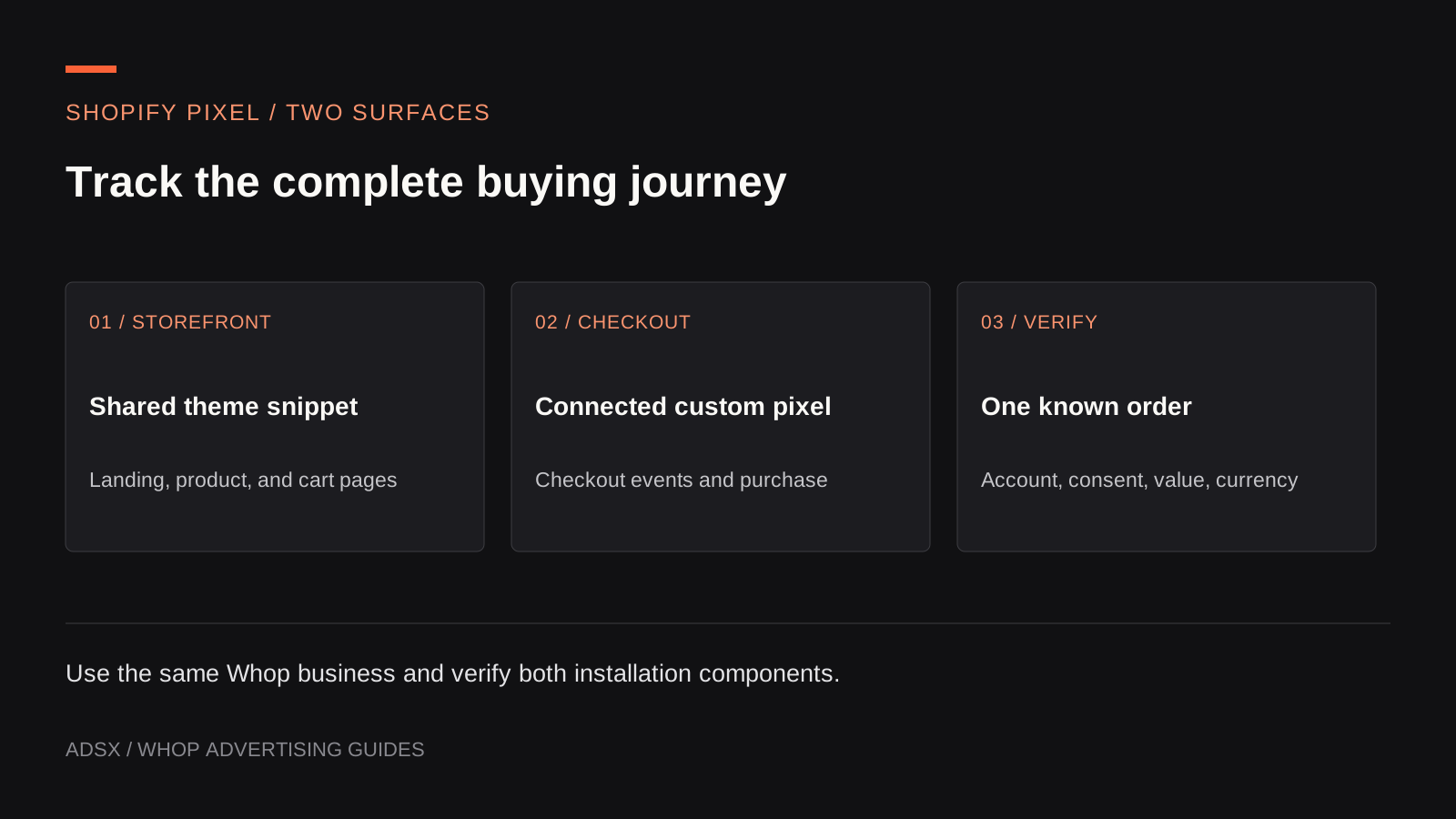
Original AdsX illustration.
Prepare the installation record
Record the Shopify store, published theme, Whop business account, implementer, and date. Save a copy of the original theme file and inventory existing tracking integrations before editing anything. If you are not comfortable reviewing JavaScript, assign the work to a developer.
Copy the current code from Whop’s Shopify installation guide. We link to the maintained source instead of reproducing hundreds of lines that could become stale. Replace its example account identifier with your own; do not copy an identifier from another store or tutorial.
Keep secrets out of theme code. A browser-visible account identifier is different from a private API credential, which has no place in this installation.
Add the storefront component
Whop directs merchants to put the base snippet in the theme’s shared head so it is present across storefront pages. Installing it only on a product template would leave other entry pages outside that setup. Use the same Whop account as the checkout component.
Before publishing, check the edited file for accidental changes around the inserted code. After publishing, inspect more than the homepage: a product, collection, and cart journey should remain usable. Keep the rollback copy until the installation is verified.
Add and connect the checkout component
In Shopify, use Settings → Customer events to add a custom pixel. Paste the current Shopify-specific script from Whop, configure the account identifier, save it, and connect it. Shopify’s custom pixel management guide explains the editor and connection controls.
The two components have different jobs. Theme scripts do not run inside Shopify checkout, so a storefront installation alone is incomplete. Whop’s Shopify script maps the completed-checkout event to a purchase and is designed to avoid repeating storefront page views.
Keep the maintained event mapping intact unless your developer has a documented reason to change it. An edit that appears harmless can break the relationship between an order, its value, and the reported event.
Review consent on both surfaces
Shopify exposes privacy settings for custom pixels. Configure those settings for the actual data use. A manually inserted theme script also needs appropriate consent handling; do not assume the custom pixel’s settings automatically govern separate theme code.
Ask the implementer to document what is collected, where it goes, when collection starts, and how a withdrawal is respected. Test the store’s intended consent states instead of switching protections off to make an event appear. This is part of a functioning installation, not a reporting inconvenience to bypass.
Test with an acceptance table
The following is a proposed test plan, not a report of tests AdsX performed:
| Action | What to inspect | Failure to investigate |
|---|---|---|
| Visit a landing page | The correct business receives permitted storefront activity | Wrong account or missing shared snippet |
| View a product and add it to cart | Expected events follow the actual actions | Events firing on page load instead of the action |
| Enter checkout | Checkout events continue through the custom pixel | Only the theme component was installed |
| Complete an authorized test order | One purchase matches the order’s value and currency | Missing, duplicated, or incorrectly valued purchase |
| Revisit the confirmation page | The same order is not treated as a new sale | A new event identifier on every visit |
| Decline optional tracking where applicable | Behavior matches the configured consent policy | Separate theme code ignoring consent |
Shopify’s Pixel Helper instructions explain how to inspect subscribed events and callback failures. A successful callback does not by itself establish that Whop received the event. Check the destination reporting too, and record the test time and order reference privately.
Diagnose the boundary that failed
If storefront activity appears but checkout purchases do not, inspect the custom pixel’s connection and errors first. If neither appears, check the account identifier, installation, and consent state. If values differ, compare the submitted amount and currency with the actual order before changing attribution settings.
Whop’s general pixel guide explains event identifiers and external purchase reporting. Preserve one stable identifier for a real conversion when the integration requires it; a retry is not another customer purchase.
Finish by documenting ownership for future theme changes and script updates. The Whop Ads for Shopify guide covers the broader operating arrangement, while our ROAS guide covers interpretation after the events arrive.
If you have not created the receiving business yet, start through AdsX’s Whop referral link. Then use that business’s own identifier throughout the setup and verify the complete journey before launching ads.