To sell Discord access with Whop, connect the correct server, map the paid product to the intended access, and verify the buyer’s Discord identity and roles. A successful payment does not by itself prove that the member can see the right channels.
Disclosure: AdsX owner Dennis Hegstad is employed at Whop. AdsX may earn a commission from qualifying businesses referred through our signup links. This article uses public sources reviewed October 4, 2026; examples are illustrative unless stated otherwise. Editorial policy.
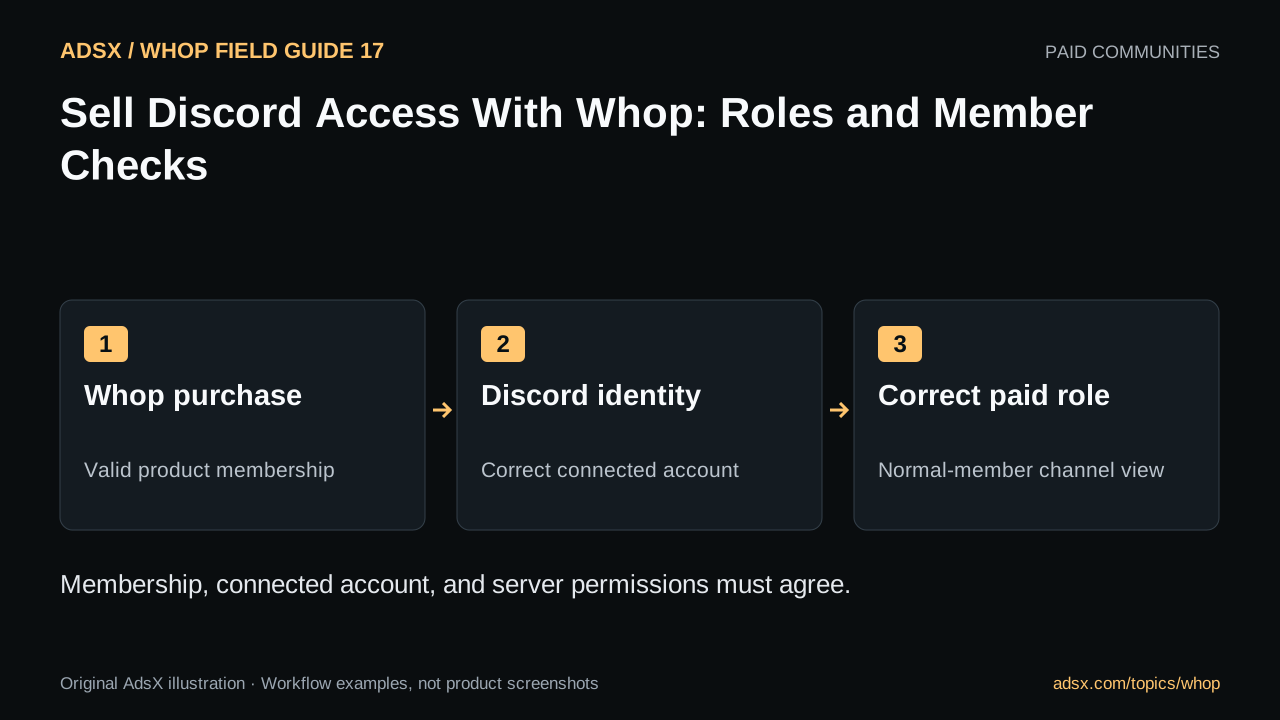
Original AdsX illustration.
Keep the access chain clear
Whop’s paid Discord guide describes adding Discord to a whop and connecting a server through the integration. Its member access documentation explains the buyer side of joining a purchased community.
The operational chain has three parts: a valid Whop membership, the intended connected Discord account, and server permissions that grant the right view. Troubleshooting is easier when you check these separately.
A buyer might pay with one email, use a different Discord identity, and already belong to your server. That is not necessarily an error, but support needs to verify which identity should receive the paid role.
Design roles before connecting products
Use an access matrix for the channels you intend to sell:
| Channel or area | Public member | Core paid member | Supported tier |
|---|---|---|---|
| Welcome and rules | Yes | Yes | Yes |
| Member discussion | No | Yes | Yes |
| Resource library | No | Yes | Yes |
| Limited review sessions | No | No | Yes |
This is an example of intended permissions, not an automatic Whop template. Review the server’s actual roles and channel overrides. A broad existing role can expose a channel even when the paid-role settings appear correct.
Keep the integration role able to manage the roles it needs, following the current setup instructions, while avoiding unnecessary permissions. Do not change a live server’s role structure without understanding which existing members depend on it.
Connect the destination and verify product access
Add the Discord app, authorize the correct server, and configure the connection using the current official walkthrough. Confirm that the purchased product includes the intended Discord experience.
Then inspect the journey using an appropriate test arrangement or authorized member. Verify the connected account, server join, assigned role, visible channels, and excluded channels. Testing only with an administrator is misleading because administrators may bypass ordinary restrictions.
If you offer several tiers, test each one. The membership-tier guide helps keep product benefits and community permissions aligned.
Check renewal and cancellation cases
Review what happens when a subscription ends, a payment fails, or a member has more than one qualifying purchase. A canceled product should not accidentally remove access still granted by another active product.
Do not promise immediate removal for every billing event without checking the documented behavior and your configuration. Cancellation, termination, and refunds have different meanings; see the merchant cancellation workflow.
Give support a short diagnostic path
Ask the member to confirm the purchased product and connected Discord account. Check membership state, integration health, and role assignment before manually granting broad access. Record any manual exception so it can be reviewed later.
Explain the joining steps in the member welcome area. A clear first action prevents many avoidable “I paid but cannot get in” requests. The onboarding guide covers that first-week experience.
Start your Whop business through AdsX’s referral link to evaluate paid Discord access. Map the roles and test a normal member’s view before selling the offer publicly.