An AI website builder needs more than “make it look premium.” It needs to know which images show the actual product, which are illustrations and where each belongs. Without that brief, a polished page can suggest a deliverable or product detail that the business never intended to sell.
Whop's Blueprints guide describes building websites through an AI chat. Use the available asset inputs in your account and give the builder an explicit image map. This article provides a preparation and review method; it does not claim every asset operation is available in every editor.
Disclosure: Dennis Hegstad is employed at Whop. AdsX may earn referral compensation when you sign up through our Whop partner link. This guide uses public information. The prompts are illustrative and have not been execution-tested in a merchant build.
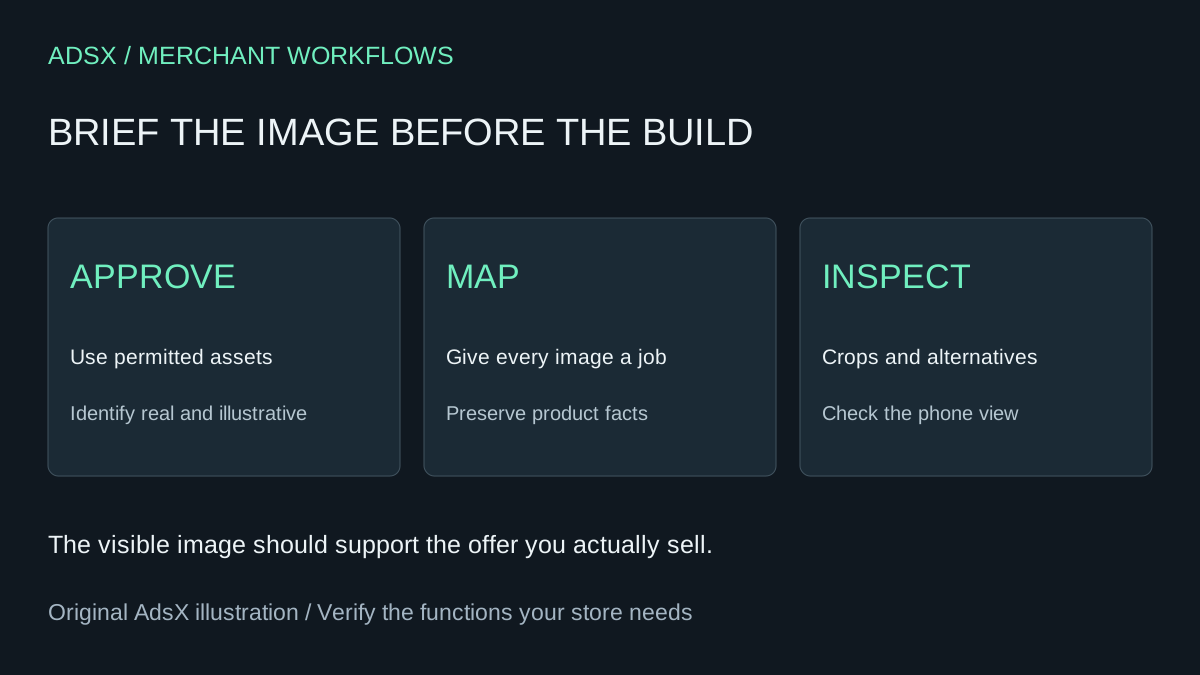
Original AdsX illustration.
Give each image one job
For an invented example, a business sells a budgeting workshop with a worksheet pack. The approved assets might be a presenter portrait, a screenshot of one worksheet and a neutral background illustration. They serve different purposes and should not be interchangeable.
| Asset | Intended use | What it must not imply |
|---|---|---|
| Presenter portrait | Identify the person teaching | Endorsement by another organization |
| Worksheet preview | Show a real included resource | That every visible sample is a finished customer result |
| Background illustration | Add visual structure | A photograph of the actual workshop or attendees |
Keep a private asset register with the file, permission or ownership basis, subject, intended placement and required caption. Use material you own or have permission to publish. Label illustrative mockups where a visitor could mistake them for the delivered product.
If an asset is missing, leave it unresolved. A placeholder is easier to correct before launch than an invented testimonial photo or a product image that misrepresents the offer.
Write an image-specific build prompt
Start with the approved offer brief, then add this original instruction:
Use only these approved assets: [asset map]. Place [portrait] beside the factual presenter introduction and [worksheet preview] beside the included-resources description. Treat [illustration] as decorative. Preserve the actual product details and do not invent customer photos, logos, results or endorsements. Do not alter worksheet content to imply additional features. If you cannot access an asset, tell me which one and leave a clearly marked placeholder. Describe any crop that removes meaningful content. Preserve the existing price and purchase destination.
The builder's response is a plan or output to inspect, not an asset-rights check. Verify that the displayed image is the intended file and that a later revision has not replaced it with a different image.
For existing sites, request a small change by naming the page and image. Avoid regenerating the full website simply to fix a crop. A focused request makes it easier to identify whether other content changed unexpectedly.
Match alternative text to the image's purpose
The W3C image decision tree distinguishes informative, decorative and functional images. A useful description conveys meaning in context. A purely decorative image generally needs an empty alternative, while an image-only link needs an accessible description of its destination or action.
For the worksheet preview, a factual alternative might be “Preview of the workshop worksheet with income and expense categories.” Do not add claims such as “guaranteed profitable budget” unless the visible asset and offer support them. Put essential instructions in real page text rather than relying on a screenshot's tiny lettering.
Ask for a review with this prompt:
Review the images on [page]. For each, state its purpose, whether its alternative text matches that purpose, and whether essential information exists only inside the image. Flag descriptions that invent details or repeat unrelated keywords. Suggest corrections and list any image you could not inspect.
A generated recommendation still requires human review of the actual image. An assistant that cannot see the asset should not describe its contents as observed.
Inspect the phone view and the purchase path
Open the published or preview page at a narrow width. Check whether a portrait loses the person's face, a worksheet becomes unreadable or text overlays hide important details. A good desktop crop does not establish a useful phone crop.
Keep the offer name, included items and purchase action as readable page content. After an image revision, open the purchase destination and compare it with the approved offer. Visual edits should not silently alter product mapping. Use the multi-offer website guide when several products share one site.
Keep the brief for later revisions
Save the asset map with the offer facts and record which images were actually inspected. If the business changes a deliverable, update the preview and its caption together. Do not let an old image promise something the current product no longer includes.
When the platform fits and the assets are ready, start building on Whop through AdsX’s partner link. A clear visual brief gives the builder useful constraints and gives you a concrete checklist for accepting the result.