A shopper selects the blue medium shirt, but sees the red shirt photograph. Before paying for a gallery app, check whether the variant has the correct assigned image and whether the theme follows that assignment. These are two separate questions.
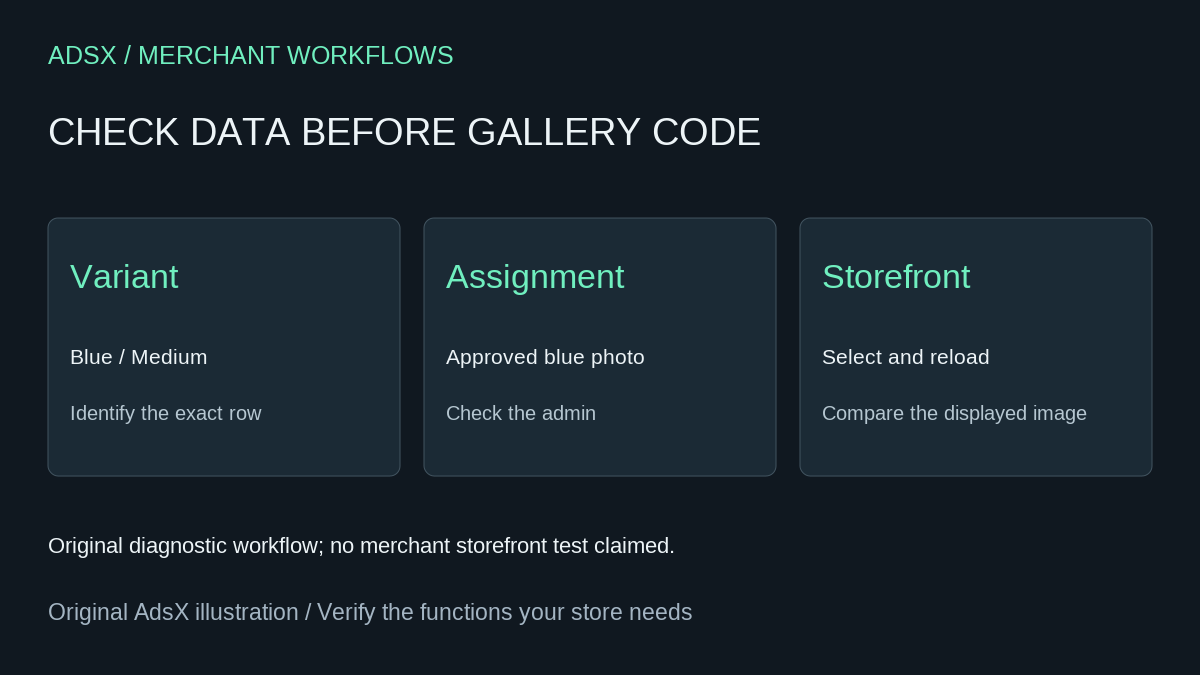
Original AdsX illustration.
Build a variant-to-image matrix
List product handle, variant identifier, option values, assigned image and the expected photograph approved by the merchant. Add an observed storefront result and a status: correct, wrong assignment, theme behavior or unresolved. Use identifiers alongside labels because similar color names can hide different products.
For a fictional shirt catalog, blue small and blue medium might share the same approved photograph. Red medium needs a different one. If blue medium alone points to red, fix that specific assignment rather than changing every image whose filename contains medium. AI can compare the supplied rows, but it must not infer the correct color solely from a filename.
Shopify currently documents one assigned image per variant. Other pictures can remain in the product media gallery, arranged together so shoppers can browse them. Variant assignment does not itself create a filtered gallery containing only that color. The documentation also flags a gradual product-details redesign, so the exact admin controls can differ between stores. Shopify variant images
Separate selection from presentation
Verify the assignment in the admin first. Then open the product, select the affected option combination and record what image appears. Repeat after a reload and from a direct variant link. If the assignment is correct but switching options leaves an unrelated image visible, investigate the theme's selection and media behavior.
Shopify's theme guidance describes variant selection and deep links using the variant query parameter. Give the assistant the relevant product section and JavaScript if code review is required; screenshots alone cannot establish how selection state reaches the gallery. Shopify theme variant guidance
A useful bug report says: blue medium is selected, the submitted variant matches blue medium, but the displayed image remains red. A different report says the selector reads blue medium while the submitted variant is red medium. The second problem affects the purchased merchandise and deserves priority over gallery styling.
Decide whether a gallery app solves a real gap
Native assignment may meet a simple requirement: show one representative image when a variant is selected. A merchant who needs several color-specific images hidden and shown together has a broader requirement. Inspect the theme's supported behavior and a candidate app's current listing before assuming either provides it.
Do not cancel an image app after checking one product. Include products with one option, several options, missing assignments and unavailable combinations, plus mobile selection and the actual Add to cart result. Keep an unpublished copy for code experiments.
For an illustrative comparison, avoiding a $12 monthly tool saves $144 annually before labor. Three hours of implementation and review at $50 cost $150, already exceeding that first-year amount. Actual app pricing and maintenance will differ. The lowest-cost answer may be correcting catalog data, retaining an app for advanced behavior, or asking the theme provider to resolve a regression.
Try the worksheet prompt
Illustrative prompt, not execution-tested.
Review a supplied Shopify variant-to-image matrix with identifiers, option values, assigned image, merchant-approved expected image and observed storefront result. Separate incorrect assignments from theme selection or gallery behavior. Never infer color from filenames alone. Produce a small correction queue and acceptance checks for selection, direct variant links, reload, mobile and submitted cart variant. Distinguish one assigned image from a filtered multi-image gallery. Make no store changes.
Copy the prompt from the merchant library. For related work, see Shopify Image Optimization: Cut Load Times Up to 70%.