The chat app is still installed, but its bubble disappears after a new theme is published. Reinstalling the app is not the first useful experiment. The new theme may simply lack the activation or placement that existed in the old one.
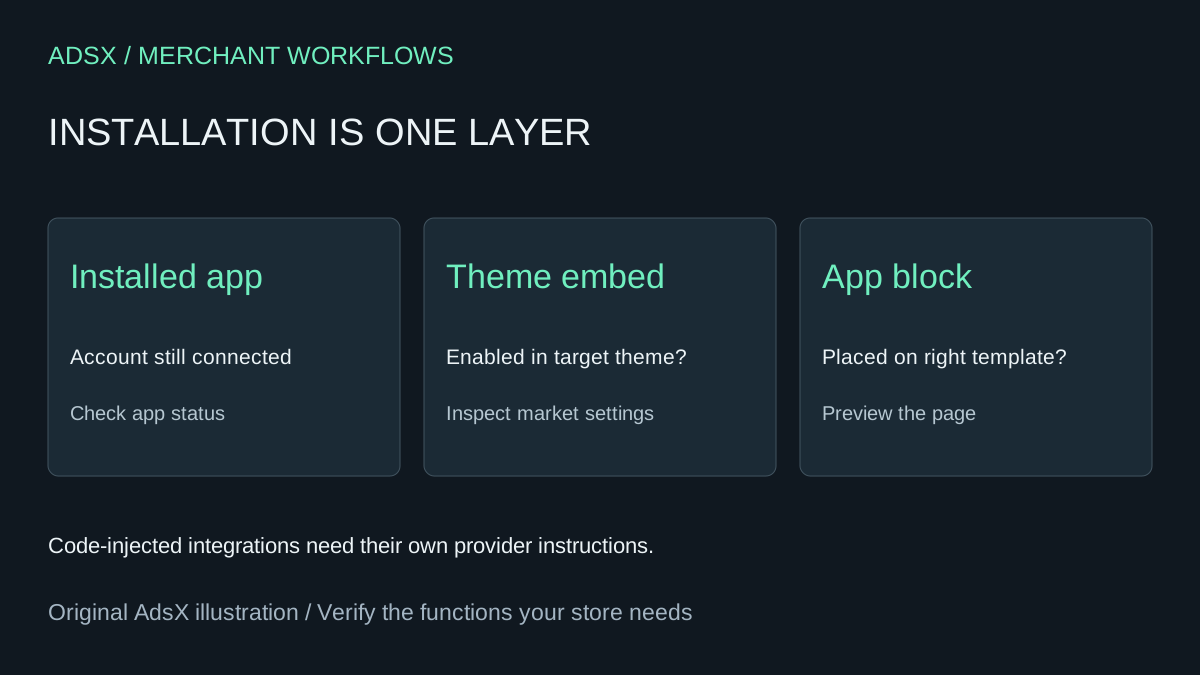
Original AdsX illustration.
Identify how the app reaches the storefront
Shopify distinguishes app blocks, app embeds and apps that add custom code. Blocks occupy positions in theme sections; embeds can provide overlays or code without a visible element. An installed app can therefore be present in the admin while its storefront integration is inactive. Shopify notes that apps need reactivation when the published theme changes. Shopify theme app integrations
Create a handoff sheet with the app name, integration type, old theme, target theme, relevant template, market context and expected behavior. For a fictional chat app, the expected behavior might be a bubble on a product page. For an analytics integration, a visible bubble would be the wrong acceptance check; use the provider's documented verification method.
Compare configuration before altering code
Open the target theme and inspect App embeds. Confirm the intended embed is enabled and its settings match the approved configuration. Check market-specific settings when relevant. If the feature uses a block, inspect the actual template assigned to the affected product. A block on one product template does not establish that every template includes it.
Shopify documents that Sidekick can help change installed app embeds from the theme editor. An AI-assisted review can also summarize the handoff sheet and propose checks. Keep the app and target theme named explicitly, and review proposed changes before applying them. Do not ask an assistant to enable every embed as a diagnostic shortcut.
Preview the complete behavior
Use the theme editor's desktop and mobile previews, then verify the relevant storefront path. Shopify's editor supports mobile preview and navigation among the theme's components. Record the URL, theme and market used for the check so another person can reproduce it. Shopify theme editor features
For the chat example, verify that the launcher appears, opens, can be dismissed and does not cover the purchase controls on mobile. For a review block, inspect the correct product's content. A successful visual check is not proof of tracking attribution or message delivery; test the specific downstream behavior separately where authorized.
If the app uses injected code, follow its current provider instructions instead of copying the old theme's entire code fragment. Capture the missing behavior and configuration evidence for support. Keep the old theme available as a comparison while you resolve the issue.
This workflow checks deployment configuration. It does not establish that an app is defective or that replacing it with custom AI-generated code would save money. Resolve the missing integration first, then evaluate its ongoing value with usage and cost evidence.
Try the worksheet prompt
Illustrative prompt, not execution-tested.
Review a supplied Shopify theme handoff inventory: app name, integration type, old and target theme, template, market and expected behavior. Separate installed status, app-embed activation, app-block placement and injected code. Identify missing evidence and propose specific desktop/mobile and downstream checks. Do not enable every embed, reinstall apps, copy unknown code or claim tracking works from visual presence. Produce a review checklist without modifying the store.
Copy the prompt from the merchant library. For related work, see Theme App Extensions: How Shopify Apps Inject Into Themes.