A PrestaShop store with two languages is more than a catalog translated twice. Buyers may arrive through different URLs, choose different product labels, and read different delivery information. A migration to Whop needs to preserve those buying paths—or make an explicit decision about which markets the new store will serve.
Start with one representative product in every language you intend to keep. If that small review exposes a missing workflow, resolve it before importing the rest of the catalog.
Disclosure: Dennis Hegstad works at Whop. AdsX may earn compensation from qualifying Whop referrals. Sources reviewed October 26, 2026. Examples are illustrative; this is a planning guide, not a report of a migration we tested.
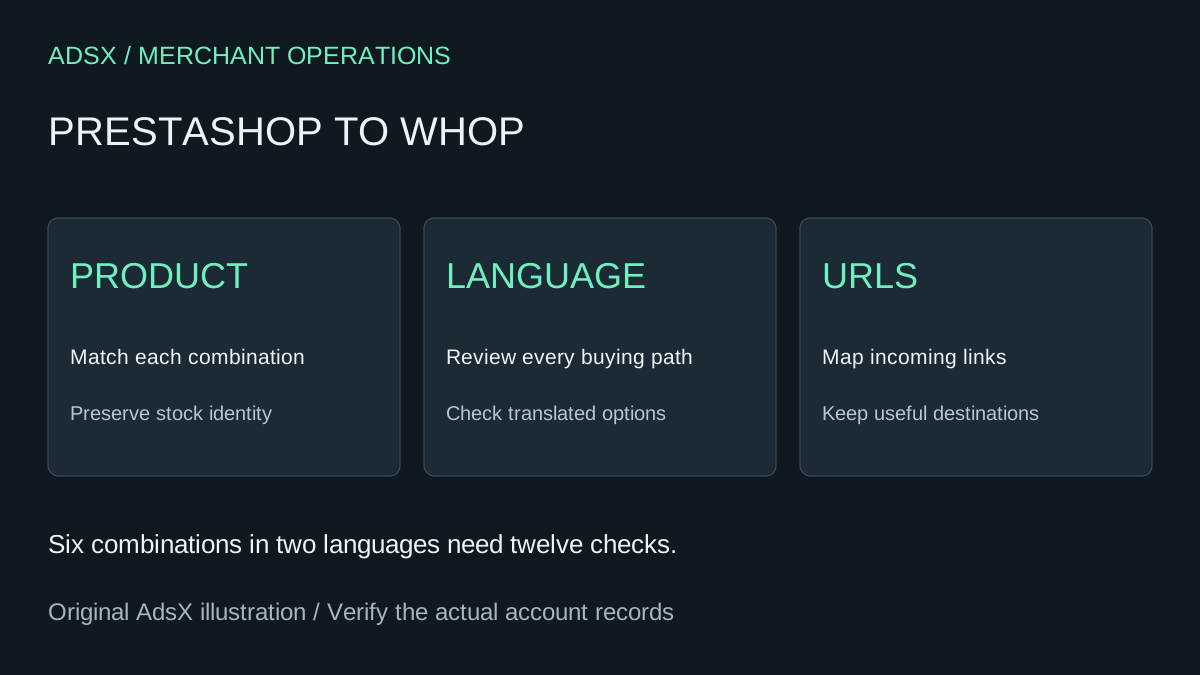
Original AdsX explanatory illustration.
Save references for the actual version you run
PrestaShop's migration documentation describes CSV export from back-office listings and notes that the exported columns follow the displayed list. Those instructions concern PrestaShop's own migration process; they do not establish compatibility with Whop.
Record your installed version and export options. Keep an untouched catalog reference, original media, and a separate record of orders still owed. Check the contents of each export rather than treating the existence of a file as proof of completeness.
The PrestaShop 8 translations guide also distinguishes translation contexts. A translated theme label and a translated product description are different things to review. Use documentation appropriate to your version when locating them.
Build a product-and-language comparison
Give each sellable combination a stable reference you can recognize across systems. A translated color name should not become a new stock identity merely because its wording differs.
| Reference | What to compare | Passing result |
|---|---|---|
| Product and combination | Size, color, SKU, image, price | The selected option identifies the intended item |
| Language | Title, description, option labels | A buyer can understand the whole purchase path |
| Delivery wording | Destination, timing, exclusions | The promise matches what you can fulfill |
| Existing URL | Current page and intended destination | Important incoming links still lead somewhere useful |
Do not infer destination support for every language, currency, or market from an imported page. Confirm those requirements in the proposed Whop setup. If you are intentionally launching in one language first, document that scope and decide how visitors from the other language pages will be served.
Example: two colors, three sizes, two languages
Suppose a clothing store sells one jacket in two colors and three sizes, with English and French product pages. That creates six sellable combinations, each described through two language views. The review needs twelve product-language checks, not twelve independent inventory pools.
Pick one combination that is unavailable and one whose price differs from the default. Review their labels and selected images in both languages. Then follow a saved French product URL on a phone and check whether the buyer can reach the intended item without guessing.
These are illustrative acceptance checks, not a claim that we migrated this store. They make the review finite: a merchant can mark each combination and language as passed, blocked, or deliberately excluded.
Import the site, then compare it with the reference
Whop's website migration guide documents a URL-based workflow under Websites → New website. Review the generated site against your comparison sheet; no dedicated PrestaShop connector or automatic transfer of private records is established by that guide.
Use the general Whop migration checklist for forms, integrations, open orders, and rollback planning. Keep those operational tasks separate from approving the visual storefront.
Protect useful language URLs
List the language pages that currently receive visits or important external links, using your analytics where available. For each, choose a relevant destination and verify the redirect options available in the new setup. Sending every old URL to one homepage can leave visitors searching for the item they expected.
Check page titles, canonical URLs, and language relationships with your developer when they apply. Do not remove an old language section merely because the new homepage looks finished. Preserve the content until there is a considered destination or retirement plan.
Decide whether a smaller launch is worthwhile
Whop may be worth evaluating if you want a different commerce workflow and can verify the requirements of your chosen market. A heavily localized catalog should stay on its working setup until the replacement handles the important buying paths.
Read the Whop launch checklist, then sign up for Whop through our partner link. Begin with the six-combination style of pilot above and let the results determine the scope of the move.