An internal morning workflow seems missing at 9 a.m. The operator is traveling, the store uses a different time zone, and the schedule was configured months ago. Before rebuilding the automation, establish which clock each screen represents.
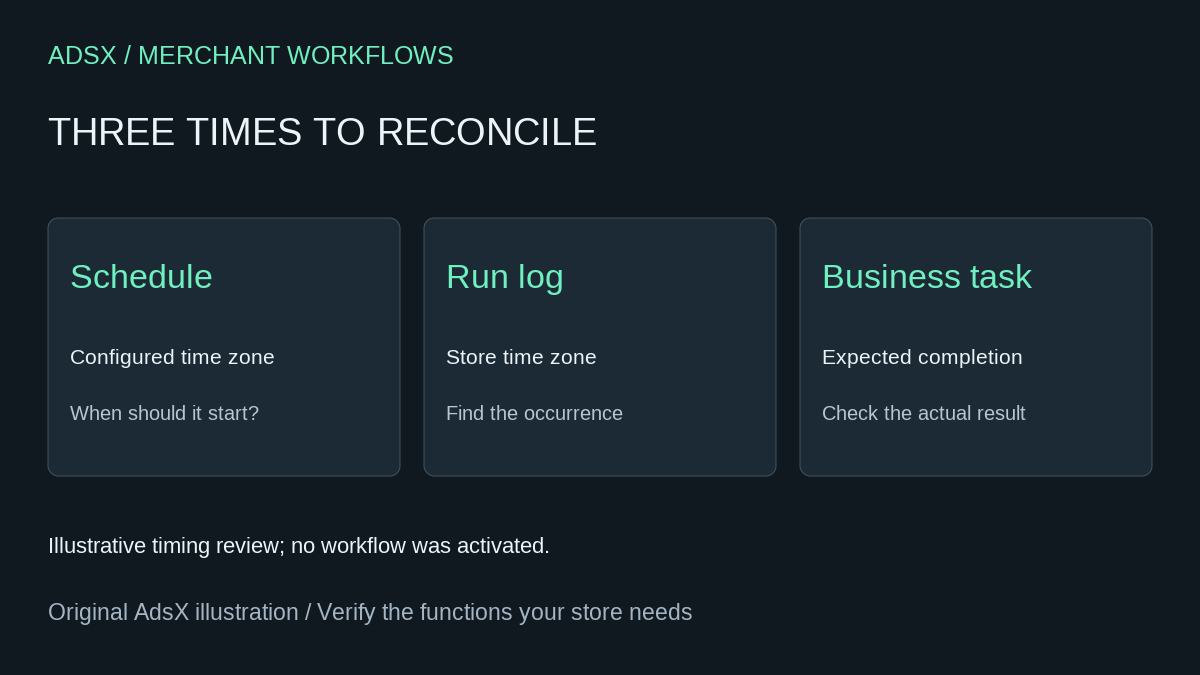
Original AdsX illustration.
Write the expected occurrence precisely
Record the workflow name, scheduled date, time zone, repeat rule and end rule. Add the business expectation separately: for example, an inventory review should be ready before staff begin work. Starting at nine and finishing by nine are different requirements.
For a fictional store, the operator expects 09:00 in the store's time zone but searches using the laptop's local time. Ask AI to translate a specific dated occurrence between the supplied zones and explain its assumptions. Use named time zones and dates, not a permanent offset guessed from today's clock. Verify the conversion independently before changing production timing.
Inspect the schedule before searching the log
Shopify's Scheduled time trigger lets merchants choose a time zone and defaults to the store's zone. A schedule needs a future occurrence to activate. Its minimum interval is ten minutes, and Shopify warns that runs lasting longer than their interval can produce inconsistent results depending on the query and actions. Scheduled time documentation
Inspect whether the rule is one-time or repeating and whether its end condition has already been reached. A workflow intended to run ten times should not be diagnosed as broken merely because an eleventh occurrence never appeared.
Do not shorten the interval to make a missing run easier to catch. If an illustrative job takes twelve minutes but starts every ten, the next occurrence can begin before the previous one completes. First understand the work and repeated effects.
Search using the log's clock
Shopify documents run timestamps and the Start time filter in the store's time zone, rather than the device's. Results can take a few minutes to appear, and completed runs are retained for fourteen days. Search a narrow window and verify the actual workflow and resource instead of trusting a nearby timestamp. Finding Flow runs
If the intended run is found, inspect its steps. A scheduled start does not automatically provide an order or product to act on; the workflow may need to fetch the relevant data. An empty query result and a missing trigger are different findings. Give the assistant the sanitized run evidence, without customer information or secrets.
Change only the confirmed mismatch
Create a review table with expected occurrence, observed occurrence, time zone, status and downstream result. Mark a clock mismatch, ended schedule, empty result or failed action only when evidence supports it. Leave uncertain cases open.
After an authorized correction, observe a future occurrence and verify the intended business result once. If historical work needs recovery, use the manual retry checklist; do not assume correcting tomorrow's schedule handles yesterday's missed work.
This is an operating checklist for native Flow. It does not provide real-time monitoring or replace every feature of an automation app. Record the time spent investigating and maintaining the schedule when comparing app costs. The included AI prompt is untested in a merchant store.
Try the worksheet prompt
Illustrative prompt, not execution-tested.
Review supplied Flow schedule date, named time zone, repeat/end rules, store zone, expected completion and sanitized run evidence. Reconcile one dated occurrence with the run-log search window. Separate missing trigger, expired schedule, clock mismatch, empty fetched data and failed action. Flag overlapping runs and uncertain conversions. Produce a minimal correction proposal and future-occurrence check; do not activate, retry or send messages.
Copy the prompt from the merchant library. For related work, see Debug a Sidekick-Generated Shopify Flow From Its Run Log.