When a product disappears from a Shopify collection, start by locating the failure. Is it absent from the collection in admin, or present there but missing on the storefront? Those are different problems, and changing every condition at once makes both harder to diagnose.
Pick one missing product and one product that appears correctly. Keep their identifiers and the exact collection URL beside you. A narrow comparison gives you a useful test case before you change the whole catalog.
Sources reviewed October 29, 2026. Examples are illustrative; account controls can vary by collection model.
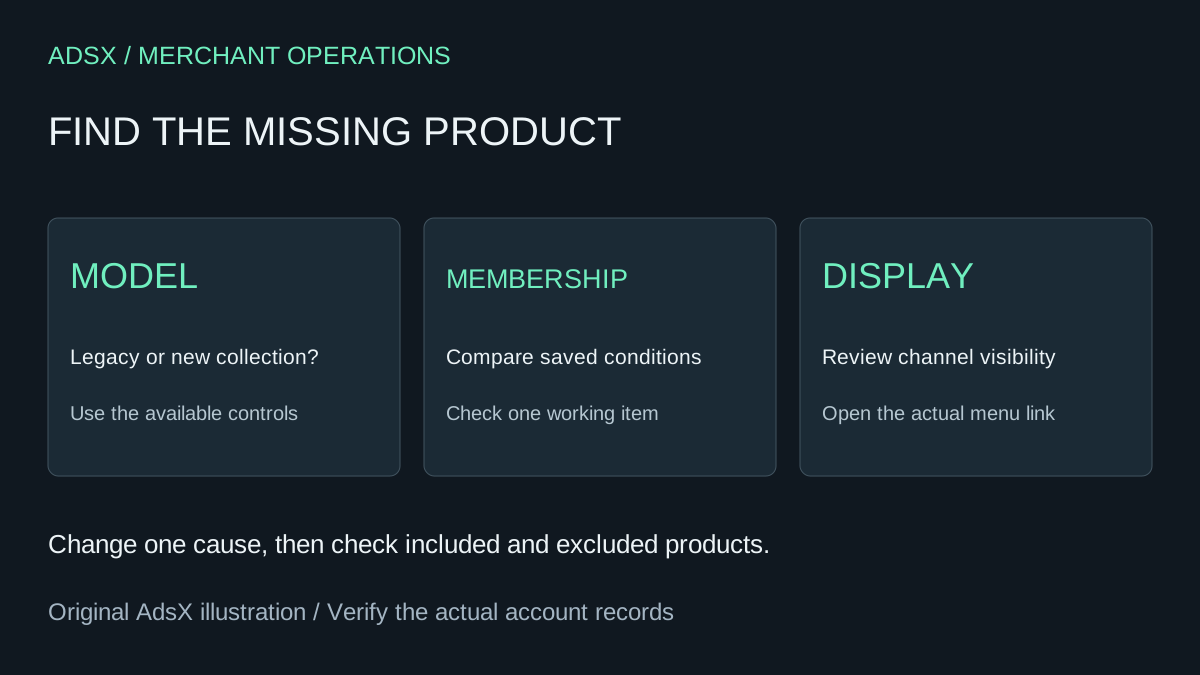
Original AdsX explanatory illustration.
Identify the collection model in your admin
Shopify's collection creation guide says a new model is replacing legacy manual and smart collections. Availability depends on your admin. In the newer model, sources can include products, variants, other collections, and apps; a product included by multiple sources appears only once.
Use the controls actually available in your store. A guide written for legacy smart collections might not describe your current screen. If you still have that model, follow its matching conditions rather than searching for new source controls that have not reached your account.
Record the current configuration before editing. Include the source, conditions, exclusions where available, sort order, and selected sales channels. This makes it possible to undo a test precisely.
Separate membership from display
| Observation | Investigate next |
|---|---|
| Missing in the admin collection | Source selection, conditions, exclusions, and product data |
| Present in admin but absent on the storefront | Publication, channel availability, and the displayed collection |
| Appears under one option but not another | Product-versus-variant scope and relevant conditions |
| Collection exists but visitors cannot find it | Menu destination and collection link |
Do not assume that rearranging the sort order adds a missing product. Membership determines what is included; sorting determines how included items are arranged. Likewise, a navigation link can lead to a different collection with a similar title.
Read the rule as a sentence
Shopify's conditions documentation describes matching products or variants using details such as tags, price, and inventory. Translate your saved rule into plain language before changing it.
For an illustrative sale collection, imagine that your intention is “summer-tagged products with a sale price.” A rule using any condition may include products that satisfy only one part. A rule requiring all conditions may exclude an item whose tag looks similar but is not the expected value.
Compare the working and missing examples field by field. Check the actual saved value rather than the product name or what a staff member remembers entering. If your intended unit is a specific variant, verify that the current model and selected source support that scope.
Make one controlled correction
Suppose a blue mug appears but a green mug does not. The green mug has the correct price but lacks the intended campaign tag. Correcting that field is a narrower change than replacing the collection or broadening its conditions for every product.
After saving, check both examples again. Also include one product that should remain excluded. A fix that restores the green mug but pulls unrelated stock into a promotion has changed the problem rather than solved it.
If the configuration appears correct but membership remains stale, use Shopify's documented troubleshooting for refreshing conditions or affected products. Capture the original values and follow the relevant procedure carefully. Avoid repeated arbitrary edits when a reproducible example would be more useful to support.
Verify the customer path
Open the collection from your store's actual menu on a phone. Confirm the expected product appears, its image matches, and the product page offers the intended option. Repeat from the direct collection URL to separate a menu problem from a membership problem.
Keep a brief record of the cause, changed field, and observed result. For wider catalog decisions, browse our running-a-store guides. If a redesign is involved, use the theme replacement handoff checklist so collection testing remains part of the release review.