A customer who paid for a digital product needs access to the right asset, not merely a successful order confirmation. When you replace a file, move linked content, or change permissions, review what earlier buyers will receive as well as what a new buyer sees.
Shopify's official Digital Products app listing is the starting point for its first-party delivery app. This guide focuses on after-purchase access in that app, rather than choosing a complete creator software stack.
Public sources were reviewed October 21, 2026. The examples describe a fictional template business; we have not tested a merchant account or changed a customer's access.
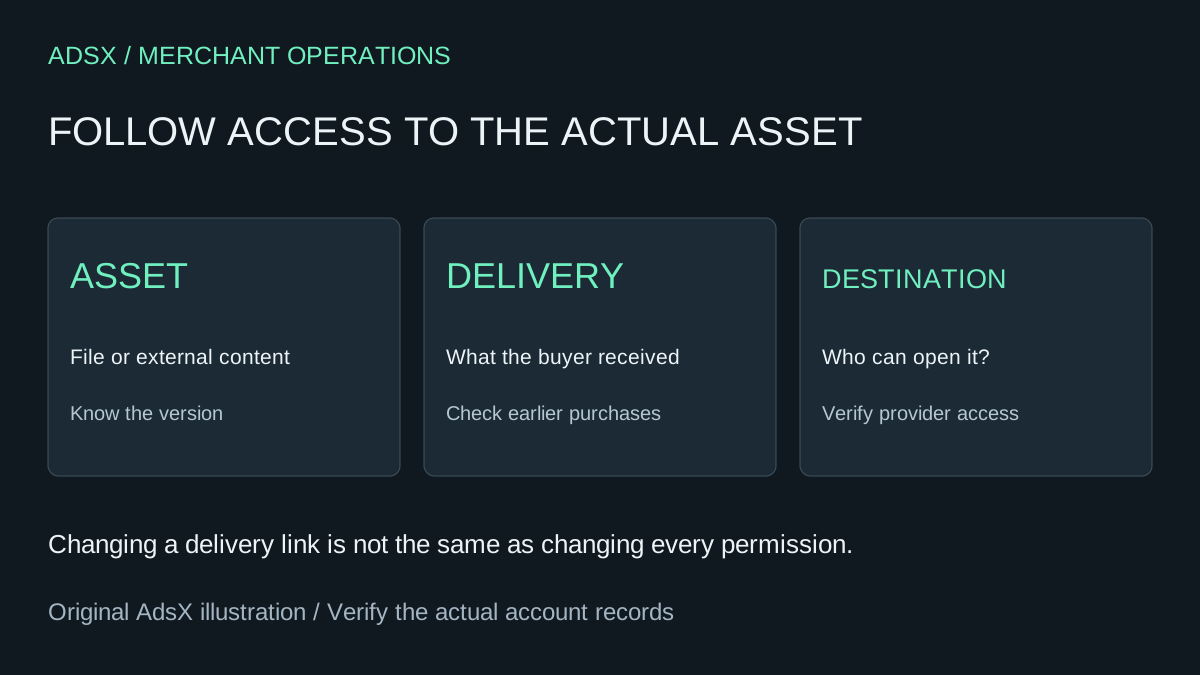
Original AdsX digital-delivery illustration.
Identify what the buyer actually purchased
Write a clear asset record for each offer: a downloadable file, a link to externally hosted content, or both. Add the version, product variant, usage instructions, and the promise about future updates.
For example, a fictional business sells a spreadsheet template and a linked tutorial. A buyer reporting “I cannot open my purchase” could mean the spreadsheet download failed, the file opened in an incompatible application, or the tutorial requires permission. Those are different support cases.
Use a small triage table:
| Buyer report | First evidence to request | Likely area to investigate |
|---|---|---|
| No delivery path found | Order and the point where access stopped | Delivery configuration |
| Download opens the wrong version | Asset name and visible version | Replacement and version record |
| Linked page says access denied | Destination and error message | Provider permissions |
| File opens but is unusable | Application and file format | Product compatibility instructions |
Ask for the minimum information needed. A customer should not have to share a password or unrelated files to demonstrate an access problem.
Treat file replacement as a release
Shopify's Digital Products guidance says existing buyers can retain their received links after an asset is edited or deleted. A replacement file with the same filename can be delivered through earlier links. Check that behavior against the update you intend.
Before replacing a template, decide whether earlier buyers should get the new version, keep the previous one, or have access to both through a supported arrangement. Do not let a convenient filename make that product decision accidentally.
Retain a controlled copy of the previous asset and a short change record. For the fictional spreadsheet, record which tabs changed and whether the customer must move their existing data. A replacement that silently removes a worksheet can create more work than the original support issue.
The backup coverage checklist helps separate the saved file from an actual recovery procedure. Keep the buyer-facing instructions concise, but make the internal version record precise.
Check permissions where the content lives
Shopify's documentation distinguishes hosted files from links to supported providers. For linked content, the provider controls sign-in and sharing permissions. Shopify does not monitor the destination for moved, deleted, or private content. Updating or removing a product link does not rewrite links earlier buyers already received.
Maintain an owner for each external destination. If a contractor hosts a tutorial in their personal account, establish how the business will keep it available when that relationship changes. Test access from an appropriate buyer context; the content owner's logged-in view can conceal a permissions problem.
Avoid solving one customer's problem by making all paid content public. Use the provider's supported access model and the product's actual entitlement. A stable destination URL is useful only while the intended customers can open it.
Review revocation and support separately
Shopify notes that deactivating a customer's delivery link does not revoke a destination URL they saved or affect share links. External access can require a separate provider-side change. Do not describe a delivery-link change as universal access removal.
Before changing access, identify the order, purchased variant, affected asset, and intended outcome. Distinguish a replacement delivery path from a decision to end access. Follow your published terms and the relevant provider's controls rather than guessing from the order status alone.
Keep support records about the observed problem and the action taken. If the customer can now open the tutorial but still cannot use the spreadsheet, the case is only partly resolved.
Test old and new purchase paths
After a significant asset update, verify a new-buyer path and an approved earlier-buyer scenario. Confirm the asset version, destination access, and instructions. Never borrow a customer's login; use controlled scenarios with appropriate authorization.
Add these checks to the store test-order checklist. A successful payment is the beginning of this acceptance test, not its end.
For a first store, the minimal digital-product app stack remains the broader planning guide. Keep the delivery setup small enough that someone on your team can explain where each asset lives, who can access it, and what happens when you change it.