A limited-edition color should appear online but not in another sales channel. Duplicating the entire product adds another record to maintain. Shopify documents variant-level publishing controls, so first check whether the desired difference is availability rather than a different product.
Original AdsX illustration.
Record the intended channel matrix
Create one row per variant and destination. Include product identifier, variant identifier, option values, intended availability, observed availability and reviewer. Name the actual channel or catalog rather than writing everywhere or wholesale in an ambiguous notes field.
For a fictional bag, the black option belongs online and in the retail channel, while the limited green option belongs online only. The matrix should preserve black in both destinations while excluding green from one. This is a more precise request than hide the bag.
Check the parent before the variant
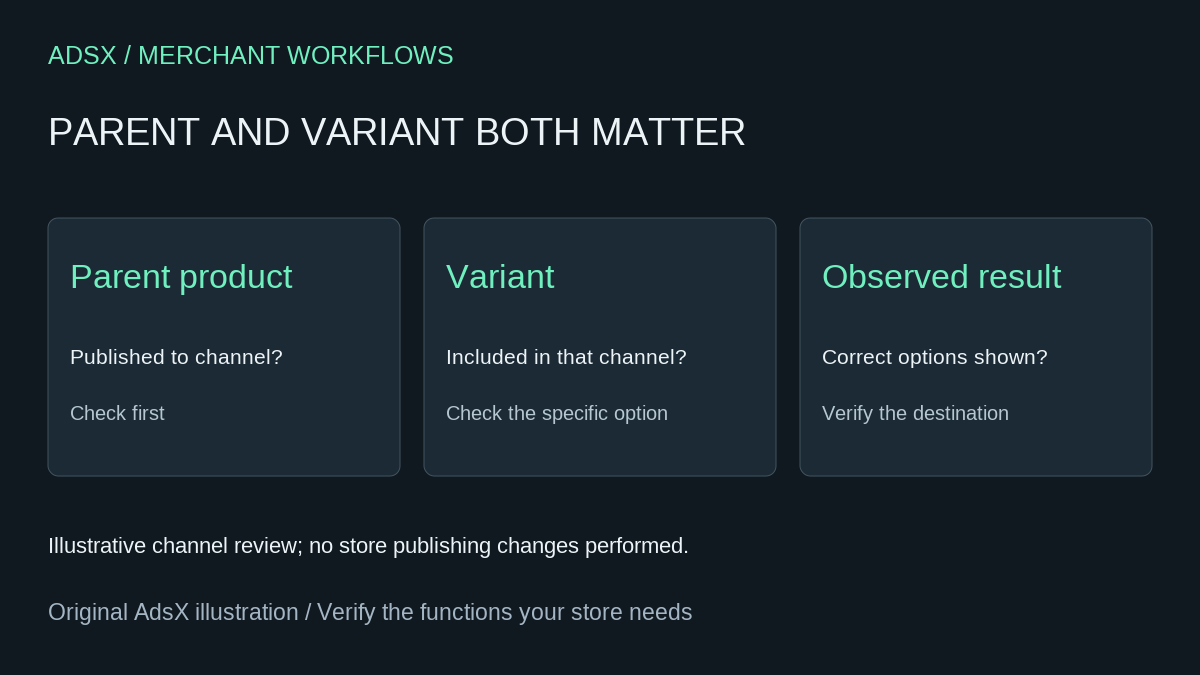
Shopify requires both the product and its variant to be published to the relevant channel or catalog for the variant to display. If the parent is unpublished, a variant setting cannot override it. If every variant is unpublished, the parent is hidden there too. New variants normally start published unless the parent is unpublished or their availability is changed before the first save. Individual variants cannot have a scheduled publishing date. Shopify variant publishing
Review the available publishing controls in your store. Shopify flags a gradual product-details redesign, so do not depend on an assistant's memorized screenshot or button placement. The desired state and identifiers matter more than a rigid sequence of clicks.
Keep status, availability and inventory separate
Product status and channel availability are separate controls. Shopify's status documentation distinguishes products ready for sale from the destinations where they are published. Unlisted is a product-level discovery choice, not a replacement for the channel matrix. Shopify product status
Do not set inventory to zero merely to express a channel restriction. That changes a different business fact and may affect stock workflows. Likewise, do not delete a historical variant simply because it should stop appearing in one destination. Ask AI to flag which proposed operation changes availability, product status or inventory.
Verify one exception before a bulk edit
Have an authorized merchant review the green variant's intended destinations. After applying the approved publishing change, inspect the online product and the excluded destination using the relevant customer context. Confirm that black remains available and green appears only where intended. Record the destination, time and observed options; a saved admin dialog is not the entire acceptance test.
Repeat when introducing a new variant, since its initial publication state can differ from the exception you set earlier. If a catalog uses custom pricing, inspect the price when the variant is included rather than assuming another catalog's price applies.
This is an AI-assisted checklist around native admin controls, not a custom app build or a claimed store test. If a third-party visibility app provides additional customer rules, timing or presentation logic, compare those functions separately before cancellation. Native publishing may replace a narrow availability task without replacing the whole app.
Try the worksheet prompt
Illustrative prompt, not execution-tested.
Build a channel-by-variant matrix from supplied product and variant identifiers, option values, parent publishing, variant publishing and intended destinations. Flag cases where the parent blocks a variant or all variants are excluded. Separate availability from inventory and product status. Check new-variant defaults and unsupported scheduling assumptions against current documentation. Produce a one-variant pilot and destination verification checklist. Do not publish, delete, duplicate products or change stock.
Copy the prompt from the merchant library. For related work, see Shopify Unlisted Products: Plan a Direct-Link Launch.