A linen towel and a waxed apron can use the same Shopify product template while needing entirely different care instructions. Store the approved wording on each product. Let a single Liquid block decide whether there is anything to display. This keeps a towel’s washing instructions from appearing on every apron.
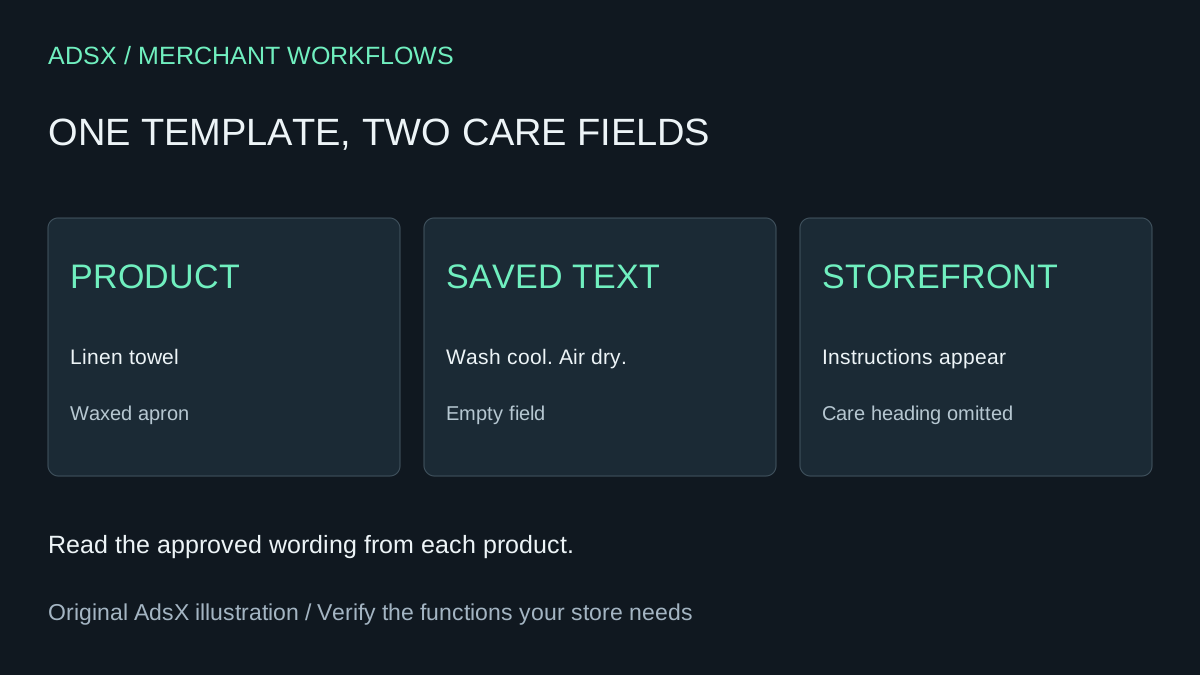
Original AdsX illustration.
Create the product field and pick two preview products
In Shopify admin, open Settings and find Metafields and metaobjects. Under product metafield definitions, add Care instructions, choose Multi-line text, and confirm the namespace and key are exactly custom.care_instructions. If your store already has an approved care field of that type, reuse it and substitute its actual key in the code. Shopify metafield definitions.
Choose two products that use the same product template. For the first, use instructions verified against its supplier label. For the second, choose a product whose care field is already empty. A duplicated theme shares the store’s product data, so use a test product if you need to enter sample wording. Duplicating a theme alone does not isolate admin data edits.
Add the block to a duplicate theme
Duplicate the current theme in the theme library. Open the copy in the theme editor, select the relevant product template and look for Custom liquid under the product information section’s Add block menu. Availability depends on the theme. If the template offers Custom liquid only as a section, place it below the product information instead. If neither option exists, use a theme developer to add a supported section before continuing.
Paste this into the Custom liquid field. The heading belongs inside the conditional so an empty product has no orphaned label. The filters escape literal markup first and then preserve intended line breaks. Shopify Liquid metafield reference and Liquid input settings.
{%- assign care = product.metafields.custom.care_instructions.value | strip -%}
{%- if care != '' -%}
  <div class="product-care">
    <h2>Product care</h2>
    <p>{{ care | escape | newline_to_br }}</p>
  </div>
{%- endif -%}
The product template supplies the product object. Putting this on a general page without that context gives the block no product to read. If the text is missing on one product, check its saved field and template assignment before changing the code.
Ask Claude Code for the same bounded change
Use this illustrative prompt in a local copy of your theme. AdsX has not run this prompt in Claude Code or connected it to a merchant store.
Inspect the product template and identify where this theme supports a Custom liquid block. Give me the smallest snippet that reads the product’s multi-line text metafield custom.care_instructions. Render a Product care heading and escaped text with line breaks only when the trimmed value is present. Inherit the theme typography. Show expected output for populated, empty and markup-like text. Leave product data, dependencies and the published theme untouched. If the template lacks a suitable block, identify the limitation before proposing file changes.
Compare the result with the reference above. A hard-coded “machine wash cold” fallback would put an unsupported care claim on every product missing a value. If generated code contains a default instruction, remove it. For the local editing workflow, see the Claude Code theme guide.
Check the preview and roll back if needed
| In the duplicate theme | Expected result |
|---|---|
| Towel with two approved lines | One heading and both lines in order, legible on a phone |
| Apron with an empty field | No care heading or paragraph. Inspect spacing added by the theme’s block wrapper. |
| Test value containing an ampersand or literal angle brackets | The characters display as text. |
| Switch between product variants | Care stays the same across variants. Use a different design if finishes or fabrics need variant-specific care. |
Check the block beside the actual purchase controls. A second care accordion or a large empty gap is a reason to revise placement. To undo the preview change, remove the block from the duplicate and save. If you later publish the copy, retain the previous theme so you can restore its layout. Product metafield values are managed separately. The Liquid beginner guide explains the objects and filters used here.